Agent computers: getting started
For users using the Agents panel
Pairing your own computer and driving it from the chat. The depth is in the
reference; see also
The /code panel, the operator's side of the same feature.
The Agents panel in the sidebar drives coding agents that run on your own
computer, not here. Your code stays on it: the agent sends what it needs to the
model through your gateway, and the chat shows you files and changes as you look
at them but keeps no copy. galopin is the one binary that makes that possible:
it lives in this repository as agent/, and you install it with one line.
None of this works until the deployment has set CODE_AGENTS_ENABLED=true; if
you run the deployment, The /code panel is the page for that.
Pair a computer in three steps
The commands on this page use three variables for your deployment's addresses:
export GATEWAY_BASE_URL=https://cerea.example.org   # the kit: your PUBLIC_ORIGIN
export CEREA_BASE_URL="$GATEWAY_BASE_URL/chat"
export OIDC_ISSUER="$GATEWAY_BASE_URL/authelia"     # bundled Authelia; else your IdP's issuer
A satellite or standalone chat on another host sets CEREA_BASE_URL to that address.
- Sign in to the chat once. Pairing identifies you by the same account, so the chat must have seen you at least once.
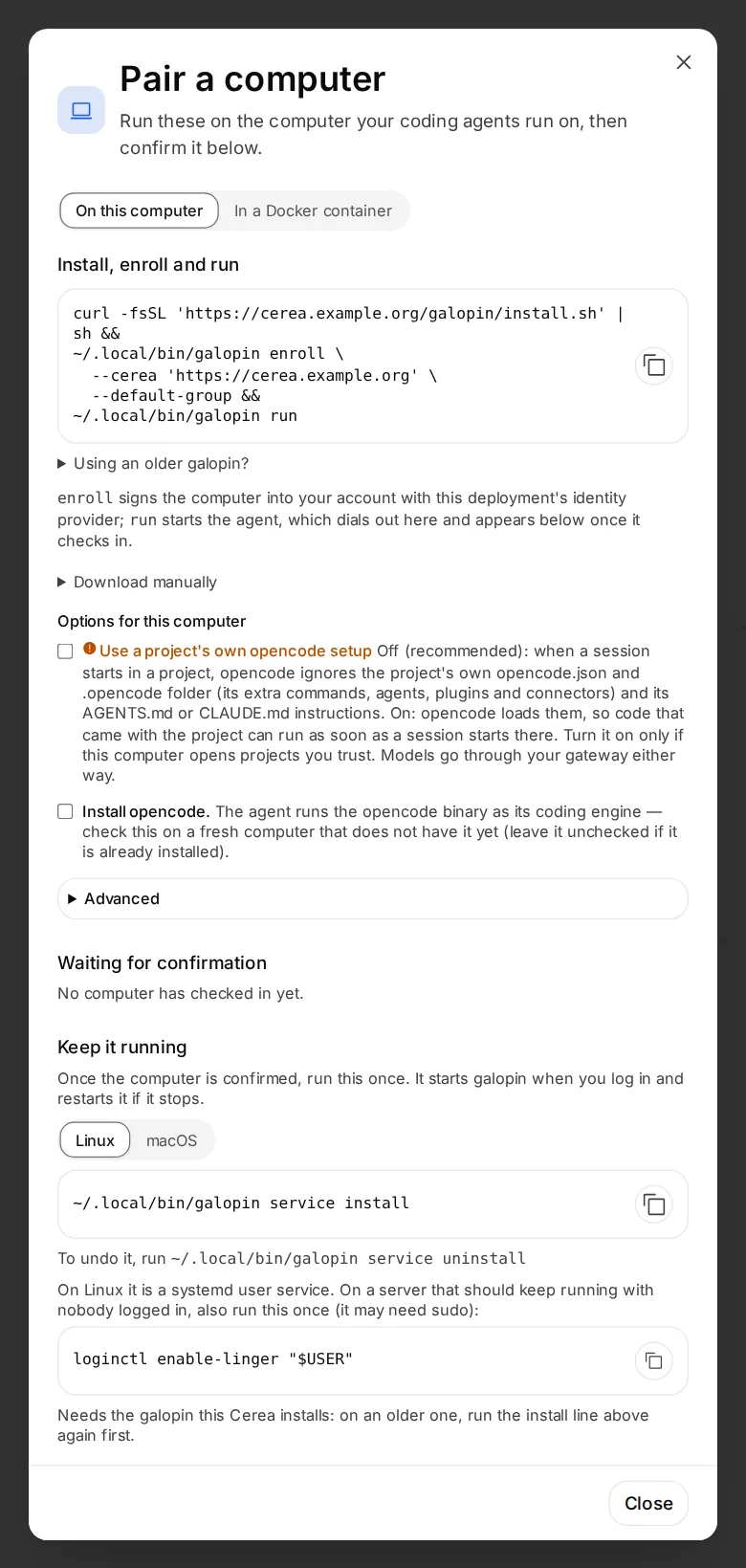
- Copy the line. In the sidebar's Agents side, click Pair (or
Pair a device when the list is empty). The Pair a computer dialog
prints one line for this deployment, with your chat's address and your options filled in. The
dialog's heading is Options for this computer: look
through them first (see
The pairing dialog), then copy the line.
One option to know about is Use a project's own opencode setup, off by
default: opencode then ignores a repository's own
opencode.json,.opencodefolder andAGENTS.mdorCLAUDE.md, so code you did not write cannot add commands, agents, plugins or connectors to the session. - Paste it in a terminal on the computer. Your browser opens to sign in; on a computer with no screen it prints a link and a code you can open on your phone. The computer then appears in the Agents panel as Pending: click the green check next to it (its tooltip reads Confirm this computer). Only you can confirm your computers, and nothing is forwarded to a computer until you do. The red cross (Reject this computer) refuses one you did not expect to see.
A fresh computer also needs a coding engine for galopin to run: opencode by default (goose and Mistral Vibe are the other two, chosen under Advanced as Coding engine; see the Mistral Vibe engine). For opencode, tick Install opencode in the dialog and the line installs it first.
That is all. The rest of this page is the panel in brief, what the permission settings mean and how to update galopin; the dialog's options and everything else are in the reference.
The command the dialog prints is short, galopin enroll --cerea <your address>
(plus the options you chose): the galopin the same line installs asks your Cerea
for its sign-in address, gateway and client id. If the computer already has an
older galopin and you install nothing, open Using an older galopin? in the
dialog for the long form with those spelled out.
Or pair a disposable container
If you would rather not install anything, galopin and opencode come ready in a
container image, with python, node, a C toolchain, git and gh. The Pair a
computer dialog has a switch at the top: On this computer (the one you see
first) or In a Docker container. Choose the second and the dialog prints one
docker run for the image of your chat's version, with your deployment's
addresses and your options filled in:
docker run -it --rm \
  --hostname sandbox \
  -v "$PWD":/workspace \
  ghcr.io/paoloviviani/galopin:<version> \
  start \
  --issuer 'https://cerea.example.org/authelia' \
  --gateway 'https://cerea.example.org' \
  --cerea 'https://cerea.example.org/chat' \
  --default-group
Run it in a terminal in your project's folder. The container enrolls (it prints a
link and a code to open on any device), then runs the agent, and the computer
appears in the panel as Pending: confirm it as for any computer, and add
/workspace, your project, as a workspace. Closing the terminal stops the
container.
In this mode the dialog also asks for a Computer name (the name the computer
has in the Agents panel; sandbox to start with) and offers Keep the pairing
across restarts, ticked by default: a container that keeps its pairing in a
Docker volume does not need pairing again, while an unticked one forgets
everything when it stops (a throwaway container). The options work as on a computer, except that the opencode install, the
manual download and the goose and Mistral Vibe engines are not offered (the image has what it
needs), and workspace folders you type are paths inside the container.
The image is published with each Cerea release under the same version as the chat, so the command works once your Cerea's release has published its image. The container can also enroll by itself from environment variables, and keep its pairing in a volume you name: see Running galopin in a container.
On a Mac, without Docker
On an Apple-silicon Mac (M1 or later) with macOS 26, Apple's own
container tool runs the same image natively,
with no Docker Desktop. The image is multi-arch since Cerea 0.54.1.
- Install
containerfrom its releases page (the signed.pkg), then start its service once:
- Create a volume so the pairing survives restarts (once):
- In Pair a computer, turn on In a Docker container and copy the command. Replace
dockerwithcontainer,--hostnamewith--name, and add the volume. Run it from the folder you want the agent to work in:
container run -it --rm --name my-mac-sandbox \
  -v galopin-home:/home/galopin \
  -v "$PWD":/workspace \
  ghcr.io/paoloviviani/galopin:<version> \
  start --issuer ... --gateway ... --cerea ... --default-group
It prints a link and a code: open the link on any device and sign in. Then confirm the
computer in the Agents panel and add /workspace as a workspace.
- To start it again later, run the same command without
startand the flags after it: the paired volume starts the agent by itself. To forget the pairing:container volume rm galopin-home.
The flags of container can change between its releases; container run --help shows
yours. Details: Running galopin in a container.
macOS app (menu bar)
Cerea connector is a small menu-bar app for a Mac, for someone who just wants Cerea to reach their own files and a browser and would rather not use a terminal. It pairs the Mac as a connectors-only computer (no coding agent), sets up the browser, and keeps galopin running. Everything it needs, including Node for the browser, is inside the app.
Install it by pasting this in Terminal (the Mac's own, one line):
curl -fsSL https://github.com/paoloviviani/Cerea/releases/latest/download/install-cerea-connector.sh | sh
It downloads the build for your Mac (Apple Silicon or Intel), checks it, puts Cerea connector in ~/Applications, and opens it. Run the same line again to update; your pairing is kept.
Or download the zip from the releases page: Cerea-connector-macos-arm64.zip for Apple Silicon (M1 and later) or Cerea-connector-macos-amd64.zip for Intel. Unzip it and drag Cerea connector to Applications. The app is not signed with an Apple developer account, so the first time you open it, macOS asks you to confirm. Which steps depend on your macOS version (Apple menu, then About This Mac, shows it):
- macOS 14 (Sonoma) and older: right-click (or Control-click) the app, choose Open, then Open again.
- macOS 15 (Sequoia) and later: open the app once and dismiss the warning. Then go to System Settings, Privacy & Security, scroll to the message about Cerea connector, click Open Anyway, confirm, and enter your Mac's password. You only do this once.
The install line above avoids this step, because curl does not mark what it downloads.
Using it. A small icon appears in the menu bar. Its menu shows whether the Mac is Connected, Offline or Not paired and the Cerea address, and whether the browser is ready.
| Menu item | What it does |
|---|---|
| Pair with Cerea... | Asks for your Cerea's address, then opens a sign-in page and shows a code to type if it asks. Under Advanced, Pair as a coding-agent computer also lets Cerea use coding agents here. When pairing as a coding-agent computer and you can bill to several groups, a list appears after sign-in to pick one, with your default preselected. |
| Set up browser | Installs galopin's browser runtime and offers it to Cerea. It uses Google Chrome if you have it; otherwise it downloads Chromium, which can take a few minutes. |
| Edit connectors... | Opens your connectors file (mcp.json) in TextEdit, creating an empty one ({"mcpServers": {}}) first if there is none. Saved changes are picked up automatically; the format is in mcp.json. |
| Open Cerea | Opens the address in your browser. |
| Start / Stop | Starts or stops galopin (Stop lasts until the app is next opened). |
| Start at login | Opens the app, and starts galopin, when you log in. On by default. |
| Show logs | Opens galopin's log in Console. |
| Quit | Closes the menu-bar icon. galopin keeps running; use Stop first to stop it. |
Remove it with curl -fsSL https://github.com/paoloviviani/Cerea/releases/latest/download/install-cerea-connector.sh | sh -s -- --uninstall, then remove the Mac in the Agents panel. See Removing the macOS app.
Add --purge to also delete the pairing and logs. That removes ~/Library/Application Support/galopin, which a manual command-line install of galopin on the same Mac shares, so that install is unpaired too.
The panel
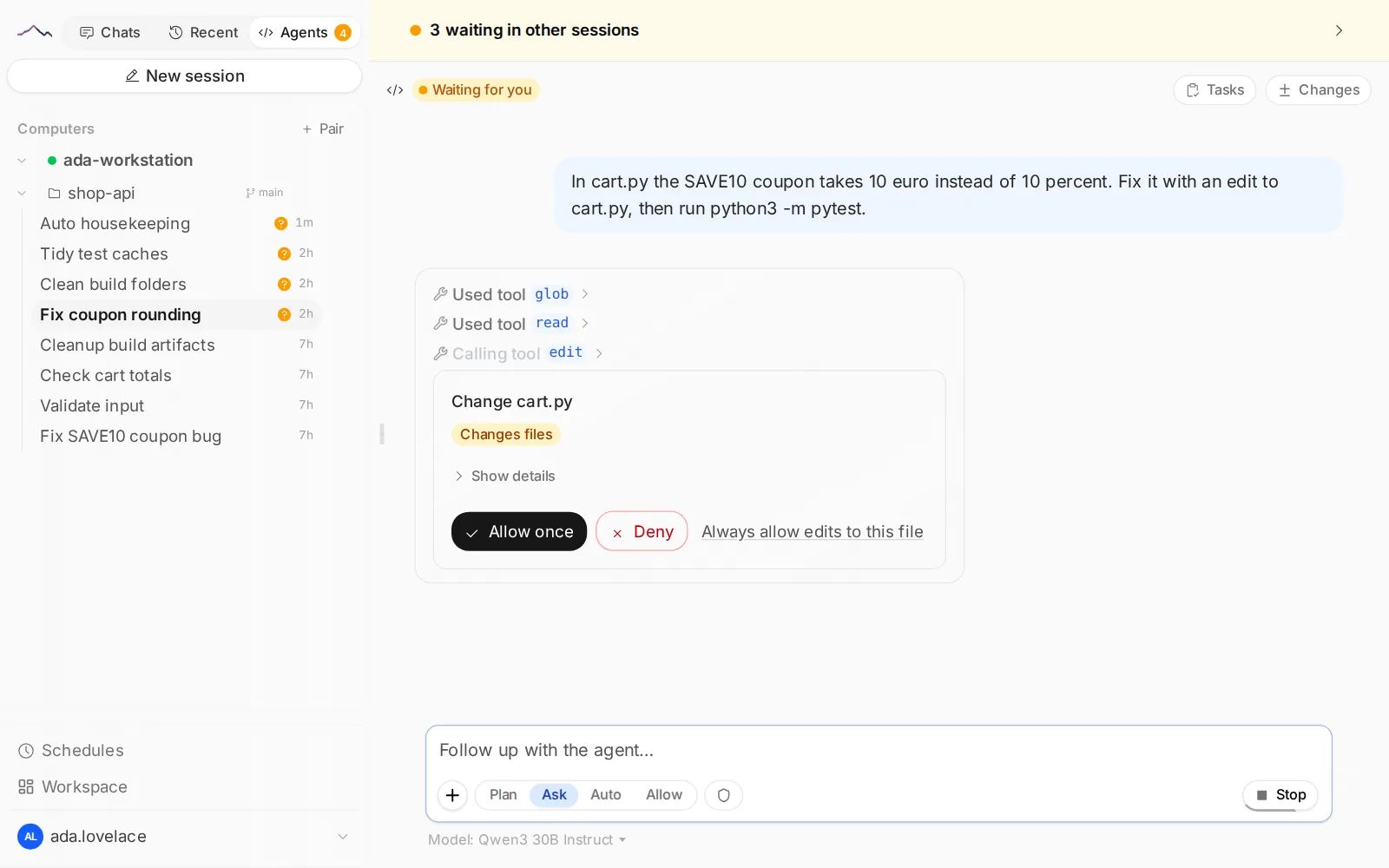
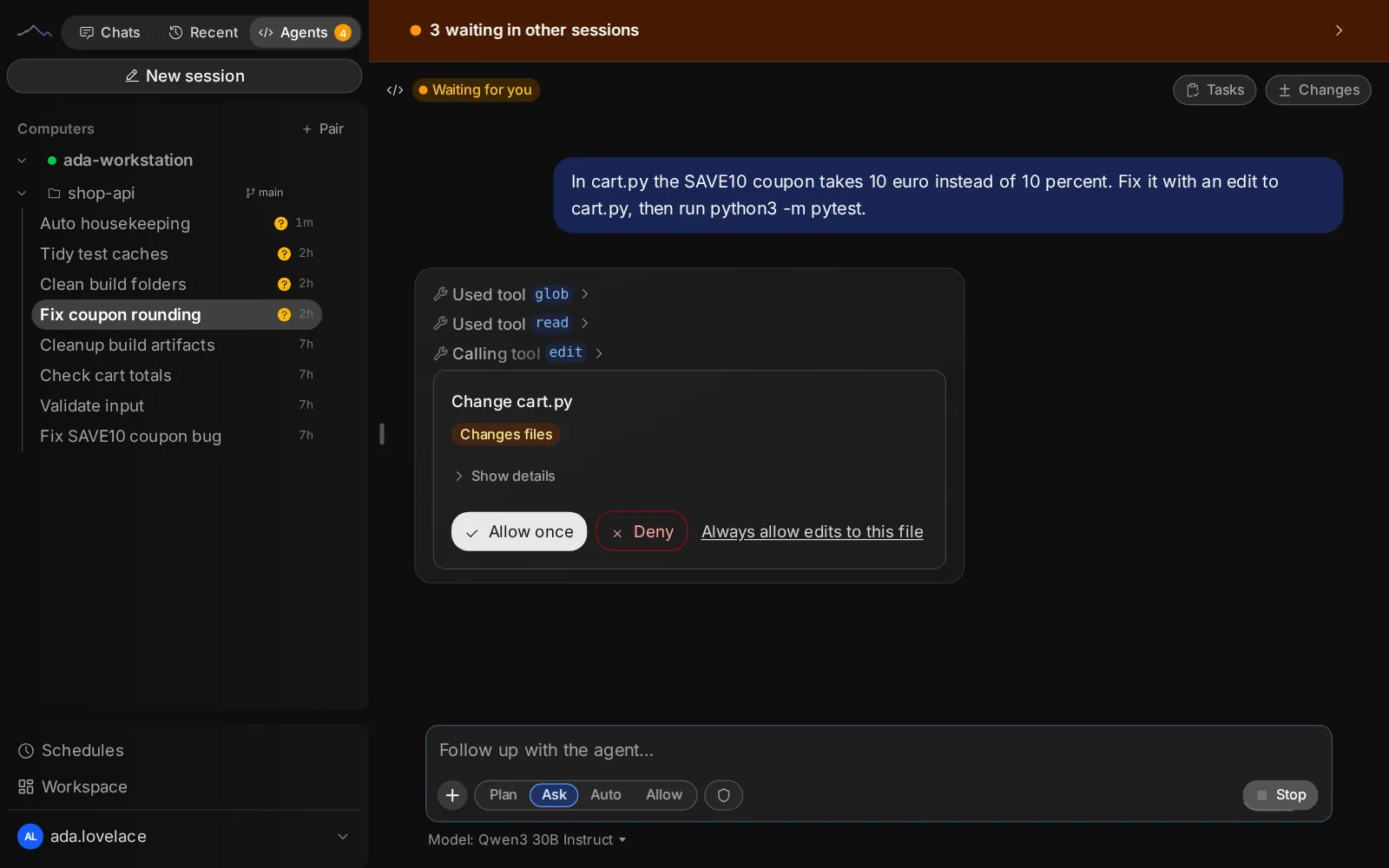
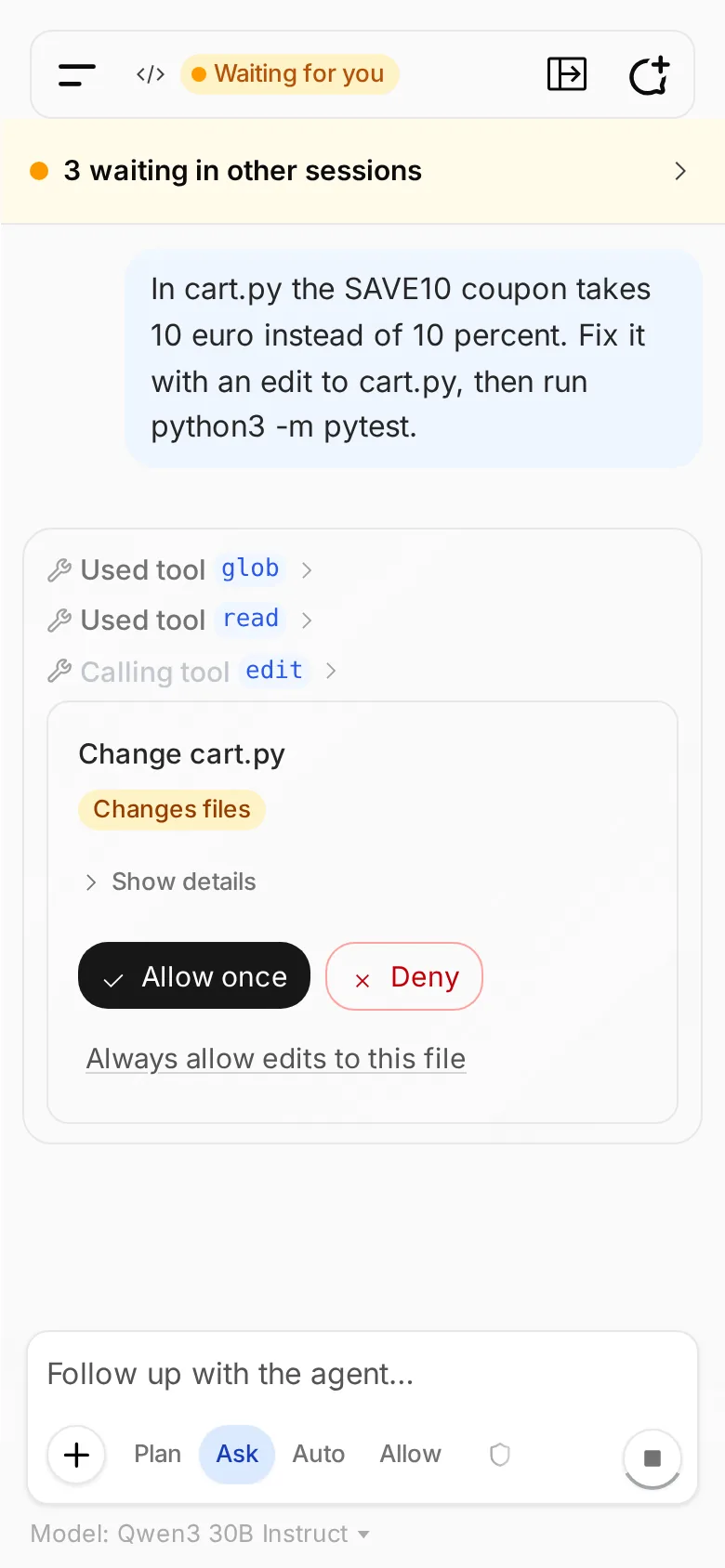
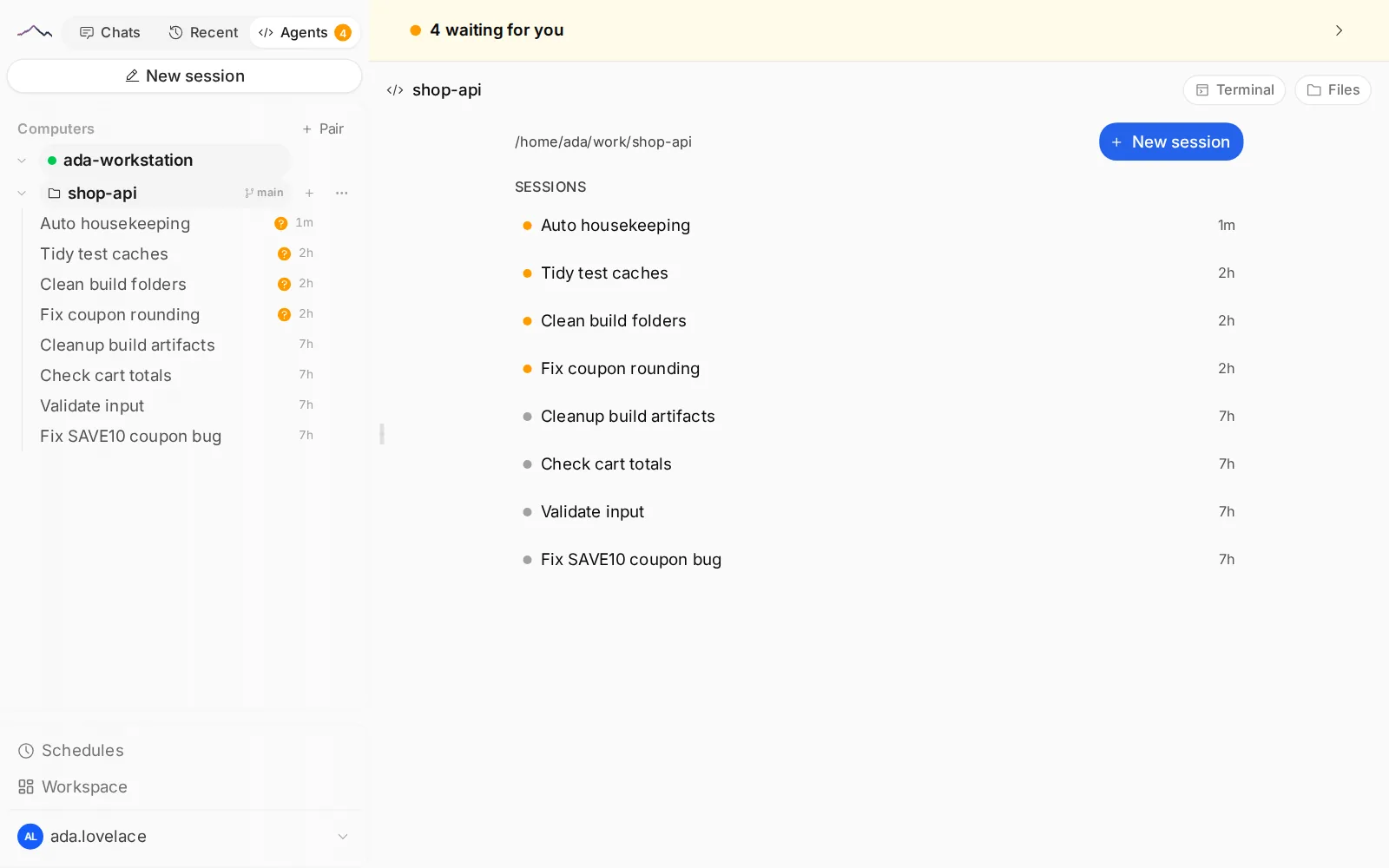
Chats | Recent | Agents, at the top of the sidebar under the logo, switches it between them (Recent mixes chats and sessions, newest first; see Chat), and the button below it follows: New session asks for the computer and the folder (starting on the ones you used last; a Pair a computer dialog opens instead if none is paired yet). The Agents side is a tree: paired computers, each with its workspaces, each with its sessions.
- A workspace is a folder on the computer. Add one by typing its absolute path. A computer can be set to refuse folders outside the ones its owner listed.
- A session (an "agent") belongs to one workspace. It reads like a chat chat, and the composer has the same pills: mode (plan, build, and whatever the agent offers), model, and the Plan · Ask · Auto · Allow permission selector.
- The Needs-you inbox lists, across all your computers, the approvals and questions waiting for you, each answerable in place.
- Changes opens a pane with the files the session has changed, from git (outside a git folder, from the edits the agent made), each with its diff.
- Cost and context: the ring in the composer shows how full the model's context is, and its popup the session's cost and the latest turn's, as the gateway metered them.
- Connectors: a session can use your connectors, off until you switch them on for it or for a project (Connectors for an agent).
- A workspace screen opens when you click a workspace: its sessions, a New session button, and Terminal and Files at the top right, with no session needed. The terminal starts in the workspace folder and the file browser is rooted there; a button you do not see is one the computer, its policy or the deployment does not offer.
- Files browses the workspace. It can also edit and save text files (on by default;
a computer enrolled with
--no-file-writestays read-only, and the browser says so); a file that changed on disk since you opened it is a conflict you resolve (reload or overwrite), never silently overwritten (Saving files). Upload (or drop files or whole folders on the list) adds files of any type, up to 200 MB each (a folder: up to 5,000 files and 2 GB), to the folder you last opened, in chunks with progress and a Cancel; it follows the same rules as saving, asks once "N files already exist: Replace all / Skip existing / Cancel" before overwriting, and needs a recent galopin. Download (an icon on a file's row, or a button in the open file) saves any file up to 500 MB, and Download as zip (on a folder) a whole folder up to 2 GB, with only reading needed; deny-listed files and symlinks are left out of a zip and listed in itsSKIPPED.txt. - Slash commands: type
/in the composer for the commands the session can run, including/compact,/undo,/modeland/new. - Stop ends a running turn. Fork from here on an answer starts a new session from that point.
- The ··· menu on a computer opens its settings, today the delegate profiles: which model a session's helpers run on.
- Schedules (at the foot of the sidebar, the same row as in Chats) send a prompt to one of your sessions on a timetable; see Scheduled actions.
You need to have signed in to the chat within the last 7 days to use the panel; your computers keep working meanwhile, the panel just asks you to sign in again (why). To be told when an agent needs you or has finished, turn on notifications.
Permissions
Every session has one permission setting, the selector in its composer. New sessions start on Ask.
| Setting | What it does with a tool call the session has no rule for |
|---|---|
| Plan | the agent plans and reads; anything that would change something is refused, with no card |
| Ask | asks you, with an approval card (reading inside the project does not ask) |
| Auto | each kind of action runs, goes to your reviewer model, or comes to you, as you set in Workspace → Agents |
| Allow | hands off: everything runs, except a fixed floor (credential files, the computer's own settings, .git and CI writes, and loops) |
When a card appears you can Allow once, Always allow (this session) for that command, or Deny. There are no computer limits: you choose the step per session, and your rows decide Auto. The fixed floor stays on Allow too, and the chat cannot loosen it. The full rules, the Permissions dialog and the exceptions are in the reference. On Auto, what the reviewer decided is in Settings → Review log (the review log).
Delegating work
A session's model can hand work to other sessions on the same computer, and to subagents inside its own turn. A computer can have profiles, a name and a model each, so a helper can run on a different model; the model can also run a committee of two or three helpers on one question, or ask a read-only second opinion. All of it is under the same permissions. See Delegating work.
Claude Code with your own subscription
Claude Code can run as a session in the Agents panel, signed in to your Claude subscription on your computer. Cerea drives it through galopin's ACP backend: you send prompts, see answers, tool calls and diffs, approve actions and use slash commands. Model calls go straight from Claude Code to Anthropic: they do not pass through the gateway and do not use your Cerea quota. This covers agent sessions only; Anthropic models in the chat still need an Anthropic provider in the gateway.
Requirements
- A computer paired with Cerea as an agent machine, with the galopin CLI. The macOS menu-bar app pairs connectors only, so it is not enough.
- galopin 0.54.2 or newer:
curl -fsSL <your-cerea>/galopin/install.sh | sh -s -- --upgrade. - Node 22 or newer.
- Claude Code installed and signed in with your subscription (run
claudeonce and sign in).
Setup
- Install the ACP adapter, pinning a version rather than taking the newest:
npm view @agentclientprotocol/claude-agent-acp time lists versions by date; a
version a few weeks old is a reasonable choice.
- Stop any galopin already running, then try it in the foreground:
-
In Cerea: Agents, then the computer, then New session in a workspace.
-
To keep it running (galopin 0.54.3 or newer), install it as a service with the same flags:
Use the full path of claude-agent-acp: a service does not see the PATH of
your shell, nvm or Homebrew. Check with galopin service status.
What works
- Prompts, streamed answers, tool calls, diffs, and approval cards. Approvals follow the session's mode (Plan, Ask, Auto, Allow).
- Slash commands: your
.claude/commands, those from plugins and skills, and the built-ins that do not need the terminal. - Sessions started in the Claude Code terminal show up in Cerea's list and open with their history. Large sessions load page by page.
- Image and file attachments, where Claude Code accepts them.
Limits
- The model and token usage are not shown in Cerea: the adapter does not report them. They count against your subscription, not Cerea.
- No reverting turns, no sub-sessions shown as separate sessions, no prompting mid-turn. The ACP protocol does not have them.
- "Always allow" on an approval stays a galopin rule on that computer. It is not written into Claude Code's own settings.
- galopin's deny list (keys, credentials) protects what Cerea shows and sends. Claude Code's own file access follows its own permission rules: set those in Claude Code if you want the same protection.
- Terminal-only commands like
/login,/configand/modelare not available from Cerea.
Through the gateway instead of a subscription
To bill a group and apply the privacy pipelines, point Claude Code at the gateway with a gateway key instead of a Claude login. Set these for the galopin process (your shell, or the service's environment):
ANTHROPIC_BASE_URL=https://<your-cerea>
ANTHROPIC_AUTH_TOKEN=<a gateway key>
ANTHROPIC_MODEL=<a model id the gateway serves>
Claude Code adds /v1/messages itself, so the base URL is the gateway's origin
without /v1.
Terms of use
Anthropic's terms restrict third-party products that offer sign-in with a Claude account, or use its rate limits, unless Anthropic approves them. Here each user runs the official Claude Code with their own subscription on their own computer, and Cerea never holds or relays the credentials. Check Anthropic's current terms before offering this to an organisation; the gateway route has no such question.
More detail: Running Claude Code over ACP.
Updating galopin
galopin is a plain binary, so updating it is the install again. On the computer, re-run the install line from the Pair a computer dialog, then restart it:
curl -fsSL "$CEREA_BASE_URL/galopin/install.sh" | sh
systemctl --user restart galopin     # or stop and start `galopin run`
The panel offers this only when galopin itself changed: a computer is flagged when
its galopin is older than the last Cerea release that changed galopin
(agent/LAST_CHANGED), so a Cerea release without galopin changes flags nothing.
A galopin older than the oldest one Cerea still supports (MIN_SUPPORTED_GALOPIN
in src/lib/utils/appVersion.ts, raised by hand when support for an older
galopin is dropped) gets a stronger "update needed" warning. When preparing a
release commit, run scripts/release/galopin-last-changed.sh X.Y.Z; release.sh
checks it.
You do not enroll again: the computer keeps its pairing, credential and policy. New panel features that need a newer galopin say so ("update galopin on that computer"). Details, including macOS, are in Updating galopin.
Keep it running
galopin run stops when its terminal closes. The last step of the Pair a
computer dialog, Keep it running, gives one command for it:
It starts galopin when you log in and restarts it if it stops. To undo it, run
galopin service uninstall; galopin service status shows whether it runs and
where its log is. On a Linux server that should keep running with nobody logged
in, also run loginctl enable-linger "$USER" (it may need sudo). In Docker the
dialog always prints docker run -d --restart unless-stopped … instead (with
the pairing box unticked it says to tick it and run the first command again
first). Run the first, interactive command as printed, without -d or
--restart: a container that cannot sign in would restart in a loop. A galopin
from before this command needs updating first. Details:
Keeping it running.
Upgrading galopin
An existing galopin (and the coding engine it runs) upgrades in one step that stops it cleanly, backs up its state, installs the build and engine version your Cerea pins, and starts it again. Enrollment and settings are kept: nothing is paired or enrolled again. The Pair a computer dialog and the computer's card in the Agents panel show the line when that computer's galopin is older than your Cerea:
From Cerea. When a computer's galopin is older than your Cerea and the computer is
online, its card in the Agents panel shows an Upgrade button, so nothing has to be
typed on the computer. It asks first ("galopin goes from X to Y; galopin restarts on this
computer and it goes offline for about a minute"), then galopin runs the same path as
galopin upgrade --yes (below), and the card shows "Upgrading…", then "Updated to vX" when
the computer reconnects at the new version. If it reconnects with the old version, or does
not come back within about five minutes, the card says the upgrade did not complete and
where the log is (<galopin config dir>/backups/upgrade-<date>.log on that computer, in
~/.config/galopin on Linux). Only the computer's owner sees the button.
The button appears only where an in-place upgrade can work: galopin runs as its
galopin systemd user unit, systemd-run is available, and the computer has not opted
out. Everywhere else the card shows the instructions that fit instead: on a Mac with the
Cerea connector app, upgrade through the app's installer; in Docker, docker pull the new
image and recreate the container; a galopin started by hand (or without systemd-run),
or one that opted out, uses the install command above in a terminal outside galopin; a
galopin from before this feature reports nothing and also shows the command.
The button is a remote code path: it makes the computer download and run the installer
Cerea serves, which is what you would paste by hand. It is on by default, except on a
computer that denies both the terminal and the command shell (--no-terminal and
--no-command-shell): its owner expects Cerea cannot run code there, so remote upgrade is
off until it is enrolled with --allow-remote-upgrade. To keep Cerea from upgrading any
computer, enroll it with --no-remote-upgrade (or run
galopin policy set --no-remote-upgrade, which takes effect within seconds, no restart);
galopin enroll --allow-remote-upgrade turns it back on. The command above still works
either way. A Mac where galopin service install set galopin up under launchd shows
galopin service uninstall, the install command, then galopin service install.
or, from a galopin new enough to have it, galopin upgrade (it downloads that
installer from the Cerea the computer is enrolled with, shows what it will do and asks
first; --yes skips the question, --show prints the installer and runs nothing; it
only fetches over https, or http on the computer itself, and refuses a redirect to
another site). In order, --upgrade:
- Checks that the computer is enrolled (galopin's
credentials.jsonin its configuration directory,~/.config/galopinon Linux). Without one it stops with "nothing to upgrade, run the normal install". It also finds out what runs galopin. - Downloads and verifies the new galopin and the engine before stopping anything, so a bad download or checksum changes nothing.
- Stops galopin: the
galopinsystemd user unit if it is running (the unit's own~/.local/bin/galopinis the one upgraded). Agalopin runyou started by hand is not stopped unless you add--stop, which sends SIGTERM to your owngalopin runwhose binary is the one being upgraded, and to nothing else. On a Mac the Cerea connector app owns galopin: upgrade through its installer, and the script says so. Inside a Docker container it prints thedocker pulland recreate steps instead. If the upgrade is started from inside galopin (Cerea's own terminal, or anything in the unit's cgroup), stopping galopin would close it half way, so with the systemd unit the installer re-runs itself as a transientsystemd-run --userunit, prints "Upgrade continues in the background; this terminal will close when galopin restarts", and logs to<galopin config dir>/backups/upgrade-<date>.log; withoutsystemd-run, or for a foregroundgalopin run, it refuses and asks for a terminal outside galopin.galopin upgrade --yesrun by an agent takes the same path. - Backs up galopin's configuration and state (not the browser's profile and
downloads, nor opencode's tools and temporary files), the binary being replaced and,
for the opencode engine, opencode's database (
~/.local/share/opencode/opencode.dbwith its-waland-shmfiles), into<galopin config dir>/backups/pre-upgrade-<date>/(the last three are kept), and prints the path. opencode 2 migrates a 1.x database in place, so keep this until you are sure of the new engine. - Installs the new galopin (each binary is copied beside its place and renamed into
it; the previous galopin stays as
galopin.prev). If the new galopin does not run, the old one is put back at once. For the opencode engine it installs the opencode version your Cerea pins when galopin's own copy in~/.opencode/binis older or missing (never a downgrade, unless you pass--with-opencode); goose the same way for the goose engine, and the pinned Mistral Vibe the same way for the Vibe engine. An opencode you installed elsewhere, such as with npm, is left alone, with a note on how to update it. - Refreshes the browser runtime when you set it up (
galopin browser setup) and checks the credential (galopin auth status). - Starts the systemd unit again (when it was running, is enabled, or an earlier failed run stopped it), and prints the old and new versions.
If the installer is interrupted or fails after galopin was stopped and before the new
galopin is in place, it starts the old one again. After that, it prints how to roll back:
put the old binary (kept in the backup, and as galopin.prev) back over galopin,
restore the opencode database from the backup, and only then start galopin. Running the
upgrade again is safe. The installer is one function called on its last line, so a
download cut short does nothing.
The panel offers the upgrade line for a computer whose galopin reports an older version
than your Cerea. galopin's version is the Cerea release it was built from (galopin
version); a galopin built from source without the release's -ldflags "-X
main.agentVersion=X.Y.Z" reports 0.1.0, as every galopin from before this did, and is
therefore always offered the upgrade. Containers are not offered it (pull the image).
Removing galopin
To take galopin off a computer (revoke it in Cerea, stop the service, remove the browser and goose additions, delete the binaries and the configuration directory), follow the checklist in Removing galopin from a computer.
Where to go next
| You want… | Read |
|---|---|
| every pairing option and what a computer will refuse | The pairing dialog and the computer policy |
| terminals, the file explorer, a repo's own config | The terminal, the file explorer, saving files |
| to run it as a service, remove a computer, install by hand | Installing and running galopin |
| how it works | How it works |