Artifacts
For everyone
What the assistant can hand you besides text: previews, documents and files, and where to find them again.
An artifact is a substantial, self-contained thing the assistant makes for you, an app, a document, a diagram, a table, a report or an image, shown in a side panel beside the chat rather than buried in the transcript. There are two kinds: text artifacts, which the model writes, and file artifacts, which a Python run produces.
Text artifacts
The model writes an artifact when the content is worth keeping apart from the answer. The kinds are:
| Kind | Shown as |
|---|---|
| HTML | a live page, in a sandboxed frame |
| React | a live component, in a sandboxed frame |
| Mermaid | a rendered diagram |
| SVG | a preview |
| Markdown | rendered text |
| Table (CSV) | a grid |
| Slides | a slide deck you can present |
| Code | source, not previewed |
Previews run in sandboxed frames with no network access: no cookies, no storage, no requests out, no remote images. See what rendered artifacts can do.
Every change is a new version. When you ask for an edit, the model can rewrite the artifact whole, or send targeted replacements that are applied to the latest version, so it does not re-emit a long document to change a sentence. The panel keeps the history and lets you move between versions.
How the assistant sees artifacts
Everything above is stored in the chat, but the assistant is not handed every version again on each turn: a deck revised ten times would fill its window with ten copies. What it receives instead:
- Past operations are one-line notes, with no content, for example
[artifact "Cerea deck" (slides) → v7: updated, 2 edits]. The note for a message is the same on every turn, so the cached part of the conversation (and its cost) holds. - The current version of the artifacts you are working on comes once, in a
<current_artifacts>block after your last message: at most three, the most recently changed first, and at most about 15% of the model's context window in total. Others are listed by name and version. readis a command of the artifact tool: the assistant can fetch the current version of any artifact, or an earlier one (version), without changing anything. Long content comes in parts (offset). A deleted version is never shown or readable. Whatreadreturns is data, not instructions.- Edit, don't rewrite. The assistant is asked to use
updateand touch only the slides or sections that change, andrewriteonly for a fresh version or when most of the content changes.
This is only how the history is rendered for the model: the panel, the versions, a
conversation export and shares are unchanged. It applies the same way to a model that
writes artifact tags in its text (it has no read), and to scheduled runs.
Whether a model makes artifacts follows the model's setting in the Workspace → Models tab: on for a model that can call tools unless the setting says otherwise.
Slides
A slides artifact is a deck the assistant writes as HTML slides and Cerea shows with reveal.js, inside the same sandboxed frame as every other preview, so it works offline. The assistant designs the slides freely (colours, grids, diagrams); Cerea supplies the controls. Ask for "slides on X" and, if it is not clear whether you want something to present here or a PowerPoint file to edit, the assistant asks first.
- Step through it with the arrows under the slides, or the arrow keys, or swipe. The counter shows where you are; Esc (or O) shows an overview.
- Present takes the deck full screen (on a phone it fills the window).
- Speaker notes show in a drawer under the slide (the notes button, or N or S). Cerea cannot open a separate speaker window, because the frame blocks pop-ups.
- Formulas. LaTeX written between dollar signs (
$x^2$,$$...$$) or\(...\)and\[...\]is typeset, including matrices,cases,\newcommandand chemistry with\ce{}. A price such as$5 and $10stays text. A formula that cannot be read shows as its source, in red, and the deck carries on. - PDF. The PDF button makes the best PDF your deployment can: where an administrator runs the page renderer (the stack's
fetchprofile) it downloads a PDF with real text you can select, one page per slide. Without it, the button opens the deck in a new tab in print layout, ready for your browser's Print dialog (choose Save as PDF; turn on background graphics to keep the colours). The small arrow beside it lists the others: print with speaker notes on their own pages, and Download PDF as pictures, made in your browser with no server at all, where the text cannot be selected. Vertical slides get a page each. - Download in the panel header saves the slides' source.
- Look. Nothing is imposed. If your organisation has set a brand colour, font or logo, the assistant can use them. You can ask for a theme: Cerea, Cerea dark, or reveal.js's white, black, simple, moon, solarized or dracula.
- What is tidied away. A deck's own scripts, event handlers (
onclick), remote images and styles, and<link>,<iframe>,<object>and similar are taken out before it is shown, in HTML decks and in HTML inside Markdown ones. That is tidying, not the safeguard: the frame itself (no access to Cerea, no network) is what keeps a deck contained. - For a quick plain deck the assistant can write Markdown instead (slides separated by
---).
An administrator can set the brand colour, font and logo under Administration → Assistant, off until set. A slides artifact cannot be opened in PowerPoint: ask for a PowerPoint file when you need one to edit.
File artifacts
A file produced by Python in the browser sandbox (a spreadsheet, a PDF, a Word document, a chart) is a file artifact. The card under the output looks like a text artifact's: name, kind and size, with Download and Open in panel.
- Versions follow the name. When you ask for a change and the assistant writes
report.pdfagain, that is v2 of the same artifact; an identical file adds nothing. - A card always opens what it showed. An older card in the chat opens the version it produced at the time, even after later versions exist; the panel moves you between versions.
- Deleting older versions works the same way as for text artifacts (see Deleting older versions); the stored files are freed.
- Produced files are kept for 30 days by default (an administrator sets the period, or no expiry, under Administration → Storage), per user, and survive reloads and other devices, so a chart or a document is still there the next day, however the assistant ran the code.
Images
A raster image a run produces (PNG, JPEG, GIF or WebP) is shown inline
under its card, without a click. Charts the assistant draws arrive this way, as
figure-1.png and so on (or under the name you asked for; see
Charts). SVG is never shown inline, because an
SVG can carry script, and neither are formats a browser may not decode; those
keep the click-to-preview and the download.
Deleting older versions
For everyone
You can free the history of an artifact without deleting the chat.
Delete older versions (the trash button at the bottom of the artifact panel, on your own chats) deletes every version of this artifact except the current one. It asks first and says how many versions will go; it cannot be undone. Afterwards it reports, for example, 2 versions deleted; 1 kept because they are shared.
- A version with an active share link is never deleted, whatever the link's audience: not revoked and not expired. Revoke the link (or let it expire) first if you want that version gone. Only a link's owner can do this, since only the owner of a chat can delete its versions.
- The numbers do not change. The remaining versions keep their numbers (the current one may be v3 with v1 kept because it is shared), and the version arrows step over the deleted ones.
- Old cards in the chat that pointed at a deleted version say This version was deleted and offer Open the current version instead of breaking.
- Files: a file version's stored bytes are freed, unless another version or stored file still uses the same content.
- Text: the messages of the chat are not changed (a text artifact is written into them). The deleted version is marked on the chat and no longer shown or counted.
An administrator can also limit how many versions of each artifact the deployment keeps, under Administration → Storage: older versions beyond that number are deleted by the hourly sweep, with the same exception for shared versions. It is off (unlimited) by default.
The Artifacts panel
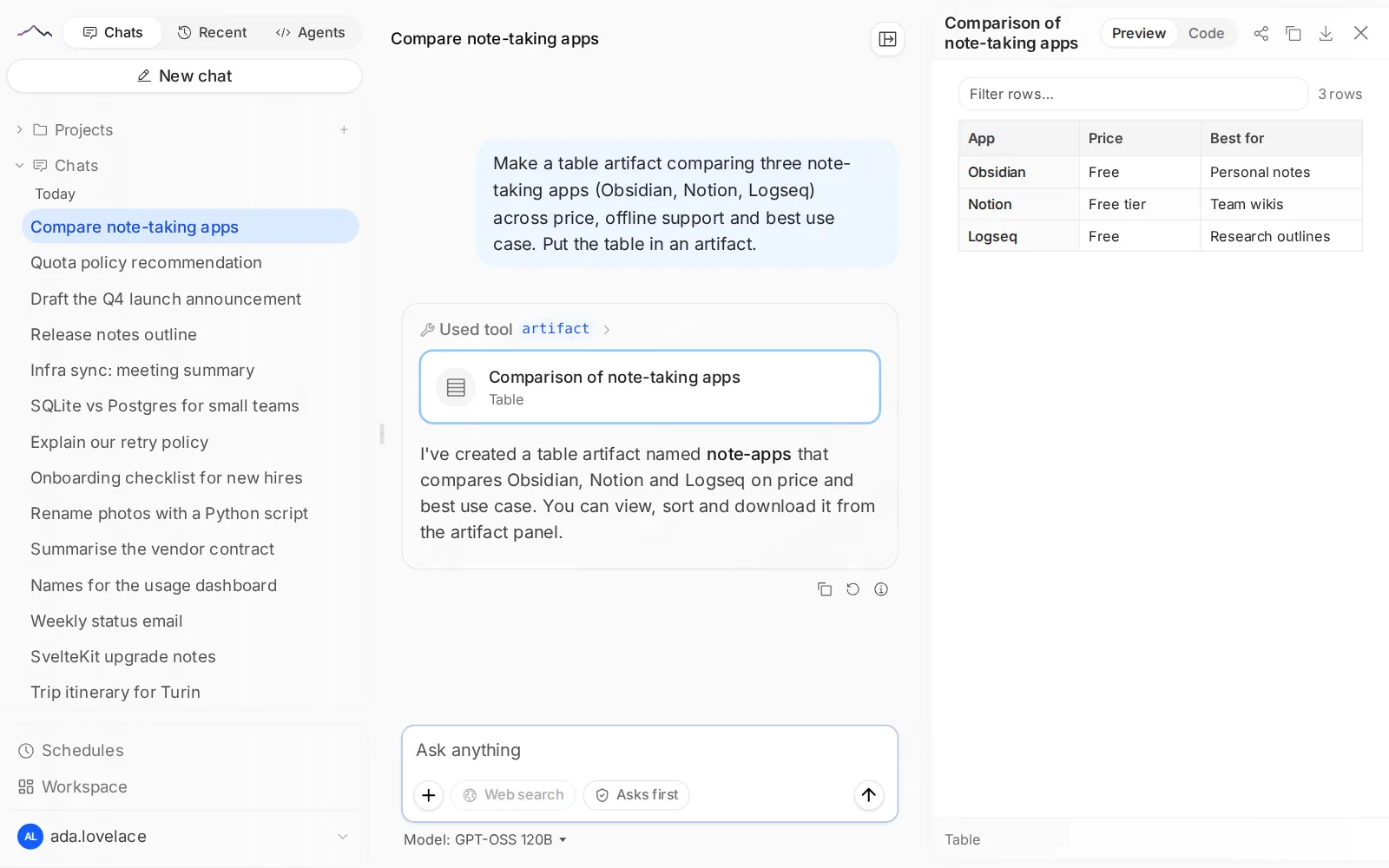
The chat's menu opens the Artifacts panel in the same side pane the previews use, so the list sits beside the chat instead of replacing it. It lists everything this chat produced, in the order it appeared: the text artifacts, and the files the assistant's code wrote. Each row opens the artifact in the panel with its versions and preview; each file has its own Download, and the list has a reload button.
The panel is per chat: it lists the open chat's files, not other chats', and files older than the retention period are gone.
The Artifacts tabs
The panel shows one chat. To find something the assistant made in an older chat, use an Artifacts tab:
- a project's page has an Artifacts tab next to Chats and
Settings (
/projects/<id>?tab=artifacts): what the assistant made in your own chats of that project; - the Chats page (
/chats) has an Artifacts tab (?tab=artifacts): the same for chats that are in no project.
Each row is one artifact, newest first: its name, what kind it is, its latest version and how many versions there are, the chat it came from and when. The name and the chat open that chat with the artifact in the side panel; the download button saves the latest version. A box above the list filters by name, and more rows load as you scroll. Files you attached to a message are not listed, only what the assistant made: text artifacts, files from its code and Office documents from the document tools.
The tab lists only your own chats. In a shared project, the artifacts of a colleague's chats are not listed and not counted. There is nothing to delete on the tab: an artifact belongs to its chat and goes when you delete the chat (or after the retention period, for files); to free its history, open it and use Delete older versions.
Sharing an artifact
For everyone
You can give anyone a link to one artifact, without sharing the chat.
Share link… in the artifact panel's header makes a public link to the artifact you are looking at. The link shows a frozen copy of that version: later changes in the chat do not appear unless you press Update to latest version. It never includes the chat, the prompt or any other artifact.
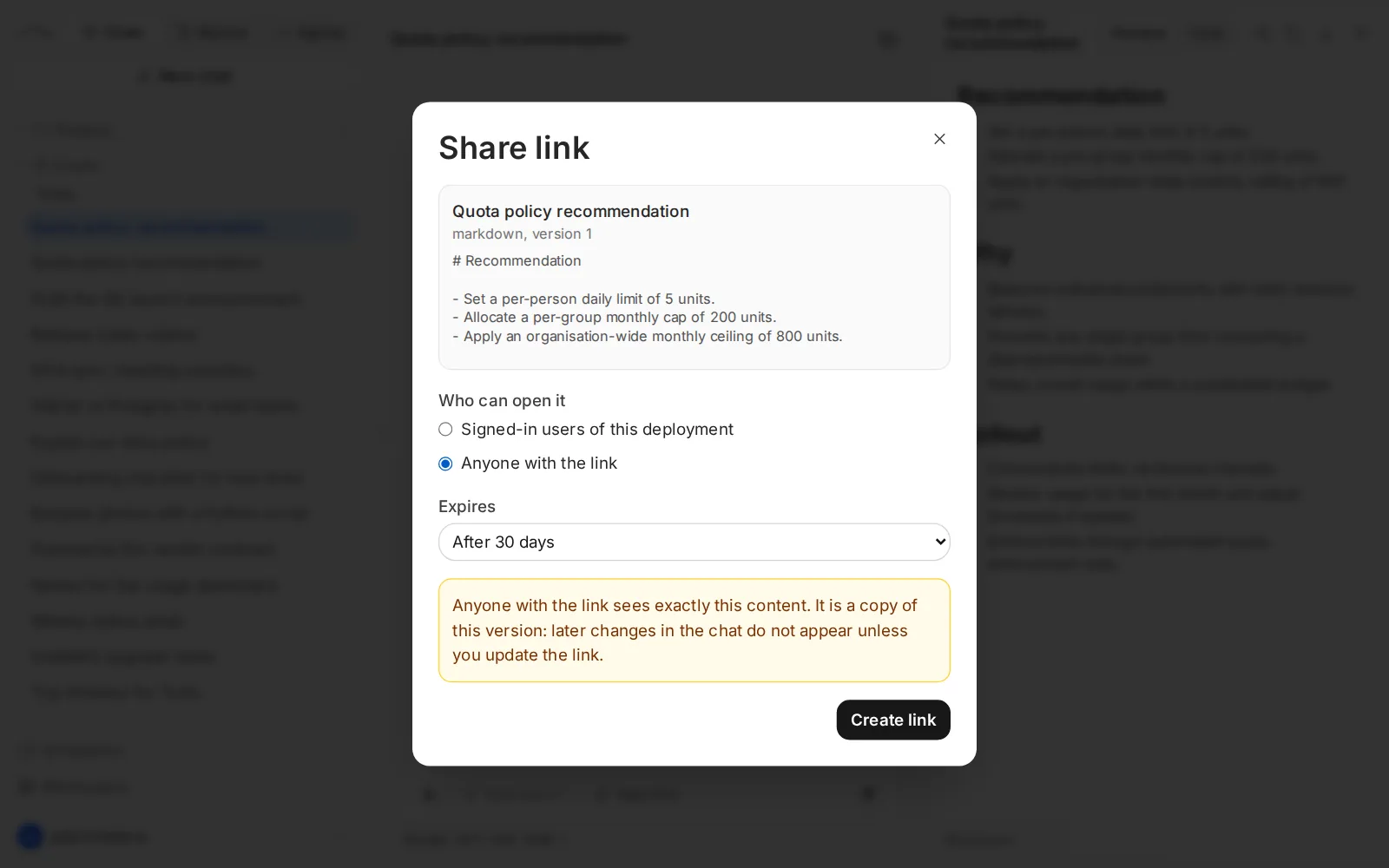
The dialog shows a preview, and says plainly who will see it: Anyone with the link sees exactly this content, or, for the default audience, Any signed-in user of this deployment with the link sees exactly this content. You choose:
- Who can open it: signed-in users of this deployment (the default), or anyone with the link.
- When it expires: after 7, 30 or 90 days, or never. Expired links stay listed, and you can set a new period.
- Copy link. For safety only a hash of the link is stored, so the link is shown once, when you make it. Later the dialog manages it (audience, expiry, Update to latest version, Revoke) and Replace link makes a new link and retires the old one.
Settings → Shared links lists your links (artifact, chat, audience, expiry, views, when made) with Revoke. An administrator sees every link and can revoke any of them, and can switch sharing off for the whole deployment under Administration → Storage. Deleting a chat deletes its links. A link made from a file the assistant's code produced lasts as long as that file is kept (see File artifacts).
What a visitor sees depends on the kind:
| Kind | A visitor gets |
|---|---|
| Markdown, tables, code, files | a read-only page with the title and a Download button |
| HTML, React, slides, diagrams, SVG | the page itself, running in a sandboxed frame with no access to anything of yours or the site's |
Every shared page carries a band the page cannot remove: Shared from <this site's address> by <your name>. Pages are not indexed by search engines, send no referrer and set no cookies. Views are counted roughly (once per visitor a day). Sharing is audited (who made, changed, revoked and opened a link, never the content).
Where links live is the operator's choice (./configure). Signed-in links
always use the path on the app's own address (/s/<token>), where your normal
session decides; someone not signed in is sent to sign in and back. Anyone's
links use a separate subdomain if there is one (the safer shape: public pages
never share an address with the app's cookies) or the same path (shared HTML then
runs on that origin, isolated only by the browser sandbox). Changing a link's
audience gives it a new address, so the old one stops working: the dialog shows
the new one. See Configuration and the
deployment kit.