Agent computers: getting started
For users using the Agents panel
Pairing your own computer and driving it from the chat. The depth is in the
reference; see also
The /code panel, the operator's side of the same feature.
The Agents panel in the sidebar drives coding agents that run on your own
computer, not here. Your code stays on it: the agent sends what it needs to the
model through your gateway, and the chat shows you files and changes as you look
at them but keeps no copy. galopin is the one binary that makes that possible:
it lives in this repository as agent/, and you install it with one line.
None of this works until the deployment has set CODE_AGENTS_ENABLED=true; if
you run the deployment, The /code panel is the page for that.
Pair a computer in three steps
The commands on this page use three variables for your deployment's addresses:
export GATEWAY_BASE_URL=https://cerea.example.org   # the kit: your PUBLIC_ORIGIN
export CEREA_BASE_URL="$GATEWAY_BASE_URL/chat"
export OIDC_ISSUER="$GATEWAY_BASE_URL/authelia"     # bundled Authelia; else your IdP's issuer
A satellite or standalone chat on another host sets CEREA_BASE_URL to that address.
- Sign in to the chat once. Pairing identifies you by the same account, so the chat must have seen you at least once.
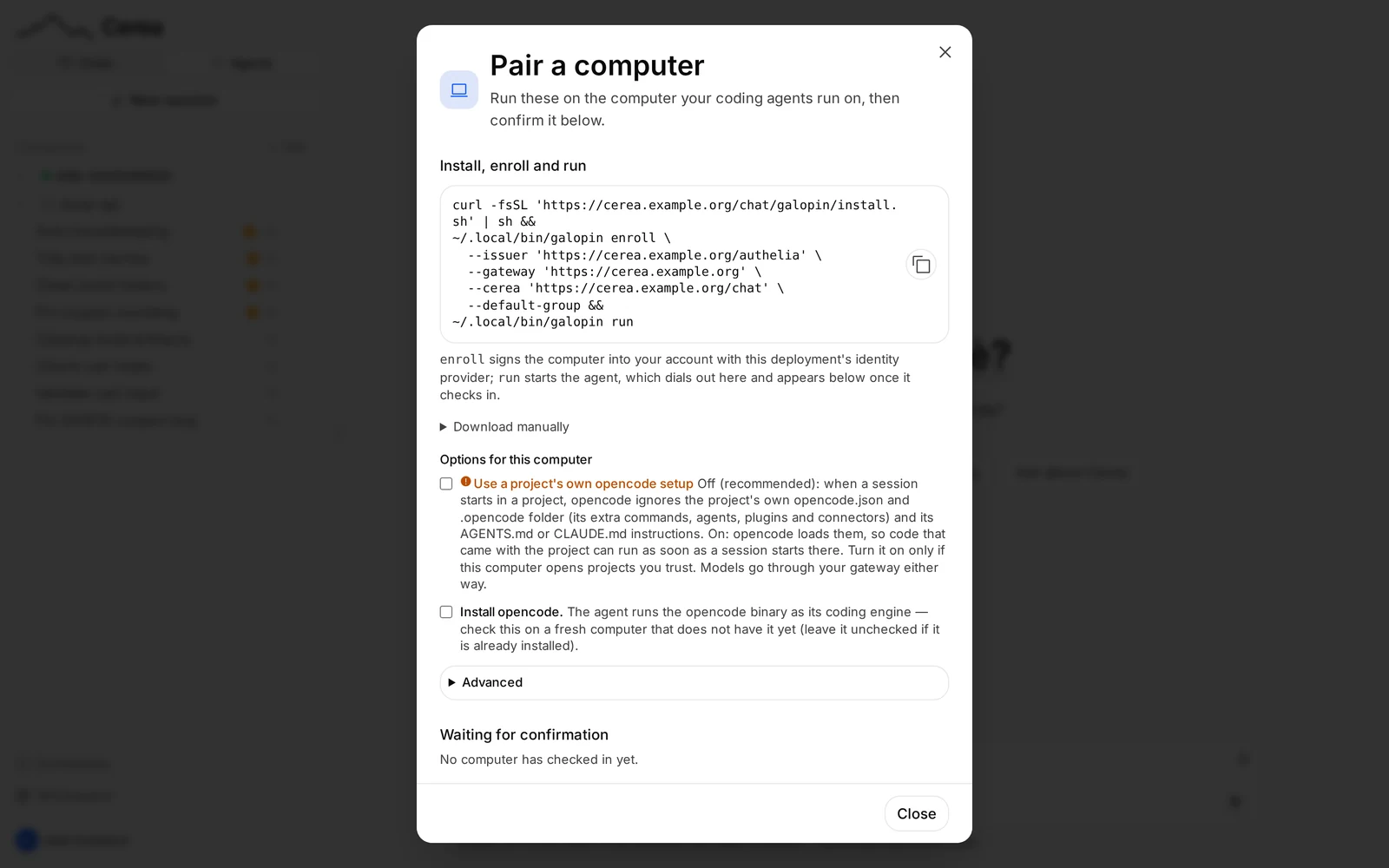
- Copy the line. In the sidebar's Agents side, click Pair (or
Pair a device when the list is empty). The Pair a computer dialog
prints one line for this deployment, with the origin, the issuer and the
gateway filled in. The dialog's heading is Options for this computer: look
through them first (see
The pairing dialog), then copy the line.
One option to know about is Use a project's own opencode setup, off by
default: opencode then ignores a repository's own
opencode.json,.opencodefolder andAGENTS.mdorCLAUDE.md, so code you did not write cannot add commands, agents, plugins or connectors to the session. - Paste it in a terminal on the computer. Your browser opens to sign in; on a computer with no screen it prints a link and a code you can open on your phone. The computer then appears in the Agents panel as Pending: click the green check next to it (its tooltip reads Confirm this computer). Only you can confirm your computers, and nothing is forwarded to a computer until you do. The red cross (Reject this computer) refuses one you did not expect to see.
A fresh computer also needs opencode, the coding engine galopin runs: tick Install opencode in the dialog and the line installs it first.
That is all. The rest of this page is the panel in brief, what the permission settings mean and how to update galopin; the dialog's options and everything else are in the reference.
The panel
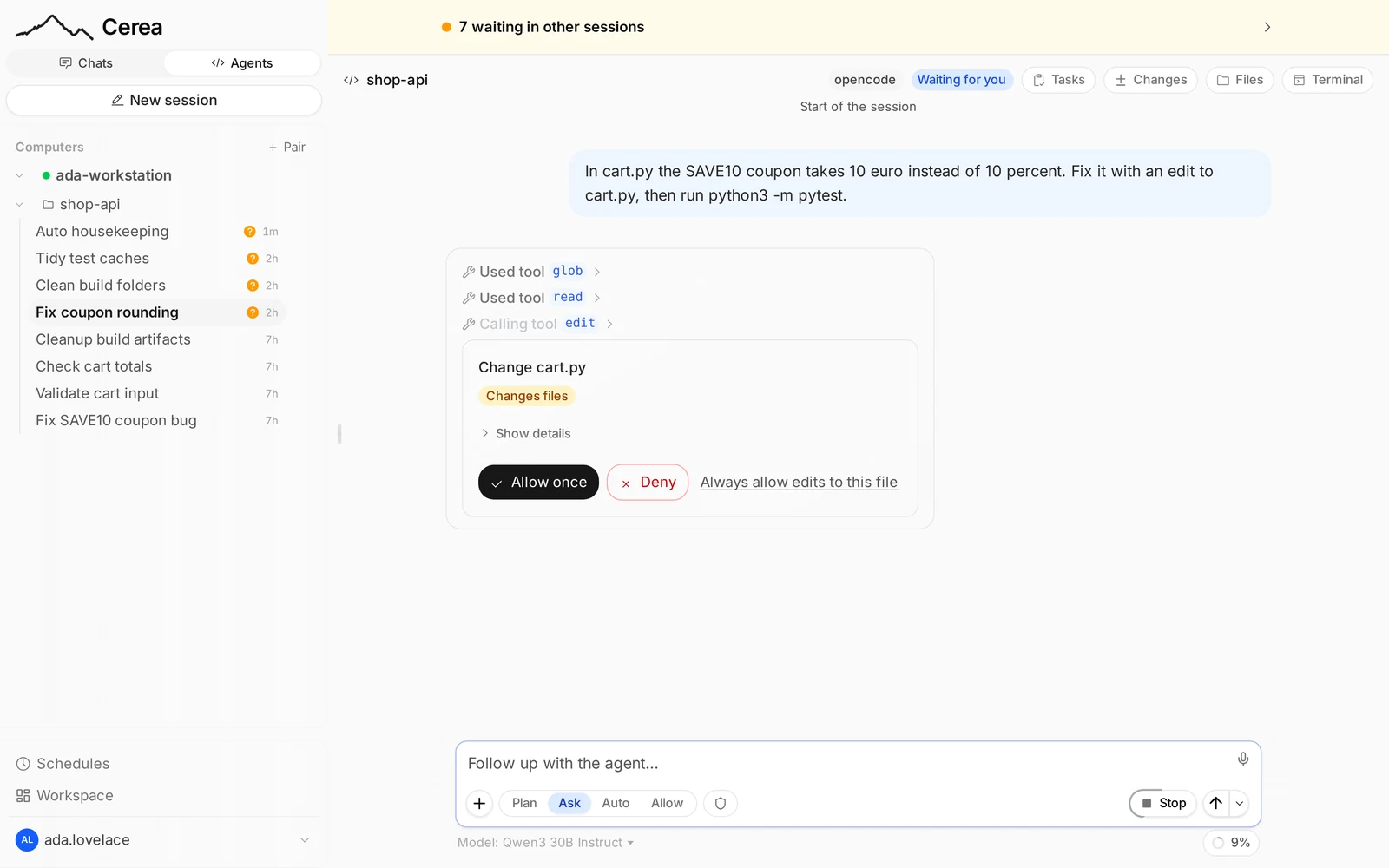
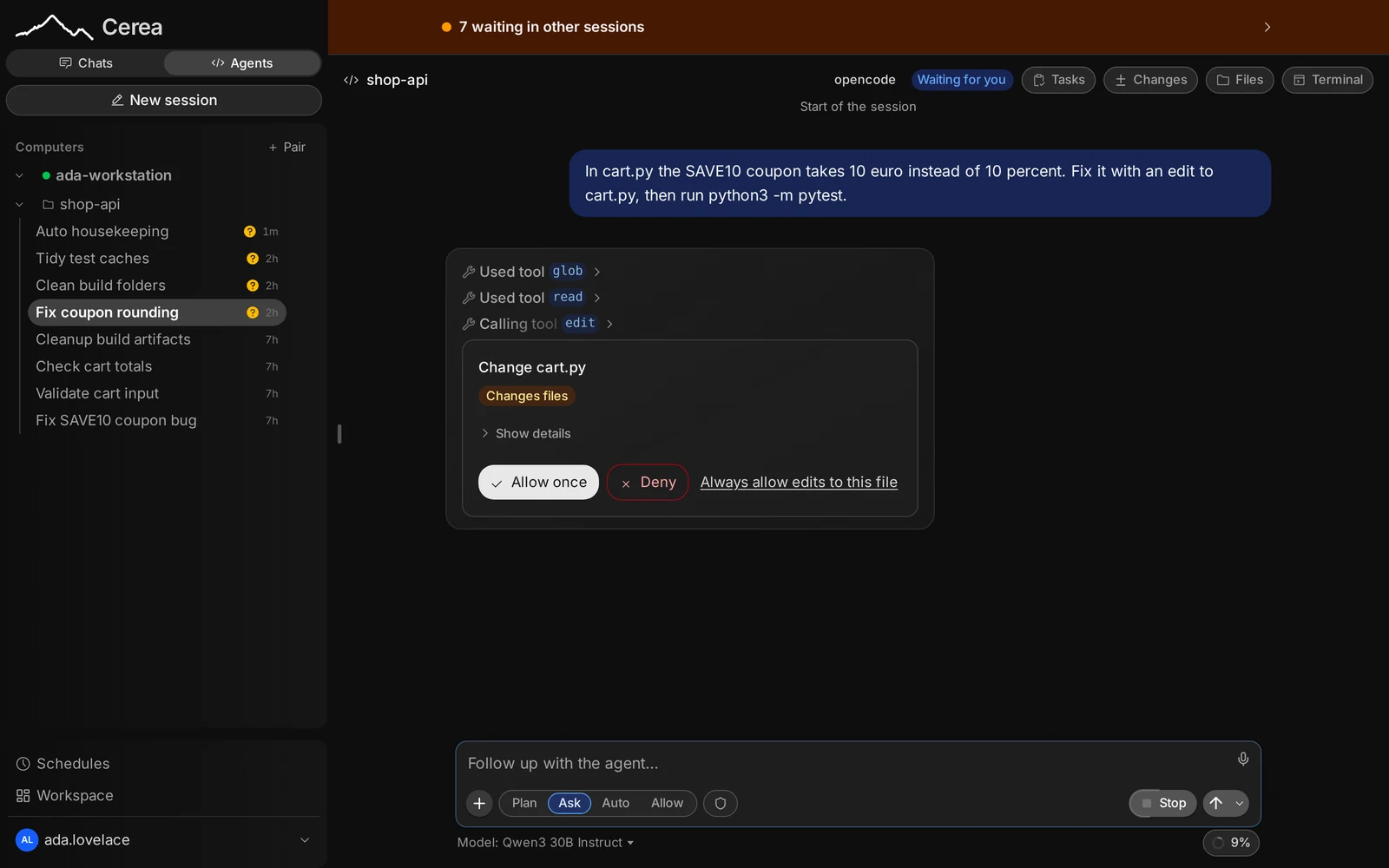
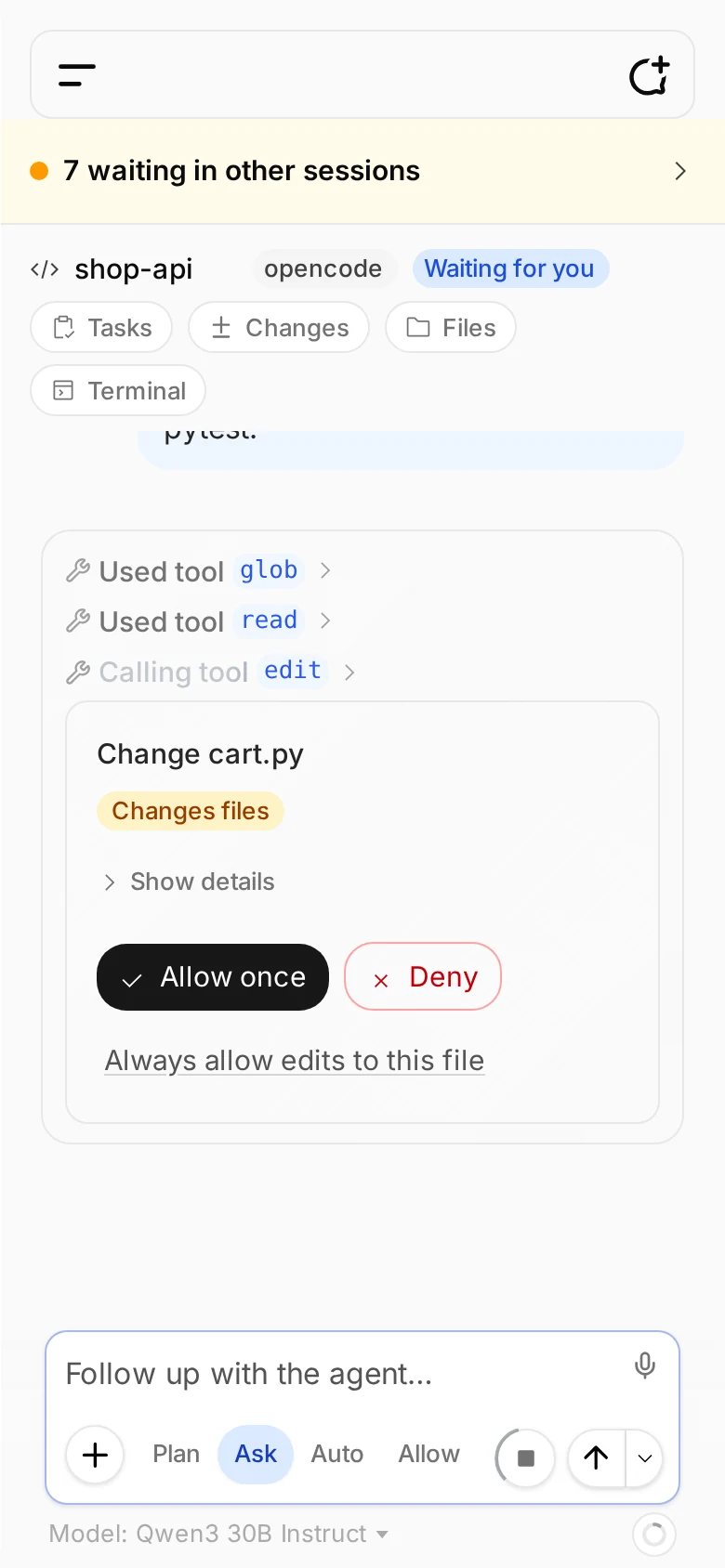
Chats | Agents, at the top of the sidebar under the logo, switches it between the two, and the button below it follows: New session asks for the computer and the folder (starting on the ones you used last; a Pair a computer dialog opens instead if none is paired yet). The Agents side is a tree: paired computers, each with its workspaces, each with its sessions.
- A workspace is a folder on the computer. Add one by typing its absolute path. A computer can be set to refuse folders outside the ones its owner listed.
- A session (an "agent") belongs to one workspace. It reads like a chat chat, and the composer has the same pills: mode (plan, build, and whatever the agent offers), model, and the Plan · Ask · Auto · Allow permission selector.
- The Needs-you inbox lists, across all your computers, the approvals and questions waiting for you, each answerable in place.
- Changes opens a pane with the files the session has changed, from git (outside a git folder, from the edits the agent made), each with its diff.
- Cost and context: the ring in the composer shows how full the model's context is, and its popup the session's cost and the latest turn's, as the gateway metered them.
- Connectors: a session can use your connectors, off until you switch them on for it or for a project (Connectors for an agent).
- Files browses the workspace. It can also edit and save text files (on by default;
a computer enrolled with
--no-file-writestays read-only); a file that changed on disk since you opened it is a conflict you resolve (reload or overwrite), never silently overwritten (Saving files). - Slash commands: type
/in the composer for the commands the session can run, including/compact,/undo,/modeland/new. - Stop ends a running turn. Fork from here on an answer starts a new session from that point.
- The ··· menu on a computer opens its settings, today the delegate profiles: which model a session's helpers run on.
- Schedules (at the foot of the sidebar, the same row as in Chats) send a prompt to one of your sessions on a timetable; see Scheduled actions.
You need to have signed in to the chat within the last 7 days to use the panel; your computers keep working meanwhile, the panel just asks you to sign in again (why). To be told when an agent needs you or has finished, turn on notifications.
Permissions
Every session has one permission setting, the selector in its composer. New sessions start on Ask.
| Setting | What it does with a tool call the session has no rule for |
|---|---|
| Plan | the agent plans and reads; anything that would change something is refused, with no card |
| Ask | asks you, with an approval card (reading inside the project does not ask) |
| Auto | each kind of action runs, goes to your reviewer model, or comes to you, as you set in Workspace → Agents |
| Allow | hands off: everything runs, except a fixed floor (credential files, the computer's own settings, .git and CI writes, and loops) |
When a card appears you can Allow once, Always allow (this session) for that command, or Deny. There are no computer limits: you choose the step per session, and your rows decide Auto. The fixed floor stays on Allow too, and the chat cannot loosen it. The full rules, the Permissions dialog and the exceptions are in the reference. On Auto, what the reviewer decided is in Settings → Review log (the review log).
Delegating work
A session's model can hand work to other sessions on the same computer, and to subagents inside its own turn. A computer can have profiles, a name and a model each, so a helper can run on a different model; the model can also run a committee of two or three helpers on one question, or ask a read-only second opinion. All of it is under the same permissions. See Delegating work.
Updating galopin
galopin is a plain binary, so updating it is the install again. On the computer, re-run the install line from the Pair a computer dialog, then restart it:
curl -fsSL "$CEREA_BASE_URL/galopin/install.sh" | sh
systemctl --user restart galopin     # or stop and start `galopin run`
You do not enroll again: the computer keeps its pairing, credential and policy. New panel features that need a newer galopin say so ("update galopin on that computer"). Details, including macOS, are in Updating galopin.
To keep galopin running when the terminal closes, see Keeping it running.
Where to go next
| You want… | Read |
|---|---|
| every pairing option and what a computer will refuse | The pairing dialog and the computer policy |
| terminals, the file explorer, a repo's own config | The terminal, the file explorer, saving files |
| to run it as a service, remove a computer, install by hand | Installing and running galopin |
| how it works | How it works |