Chat
For everyone
Talking to the models your gateway exposes: chats, models, attachments, search, approvals, memory and skills.
Cerea is a chat over the models the gateway exposes. Each call carries your own sign-in token, so the quotas and the spend belong to you and your billing group, not to the chat. What you can use is whatever the gateway grants your groups: the model list, the search tier and the document reader below are all per user.
Your billing group
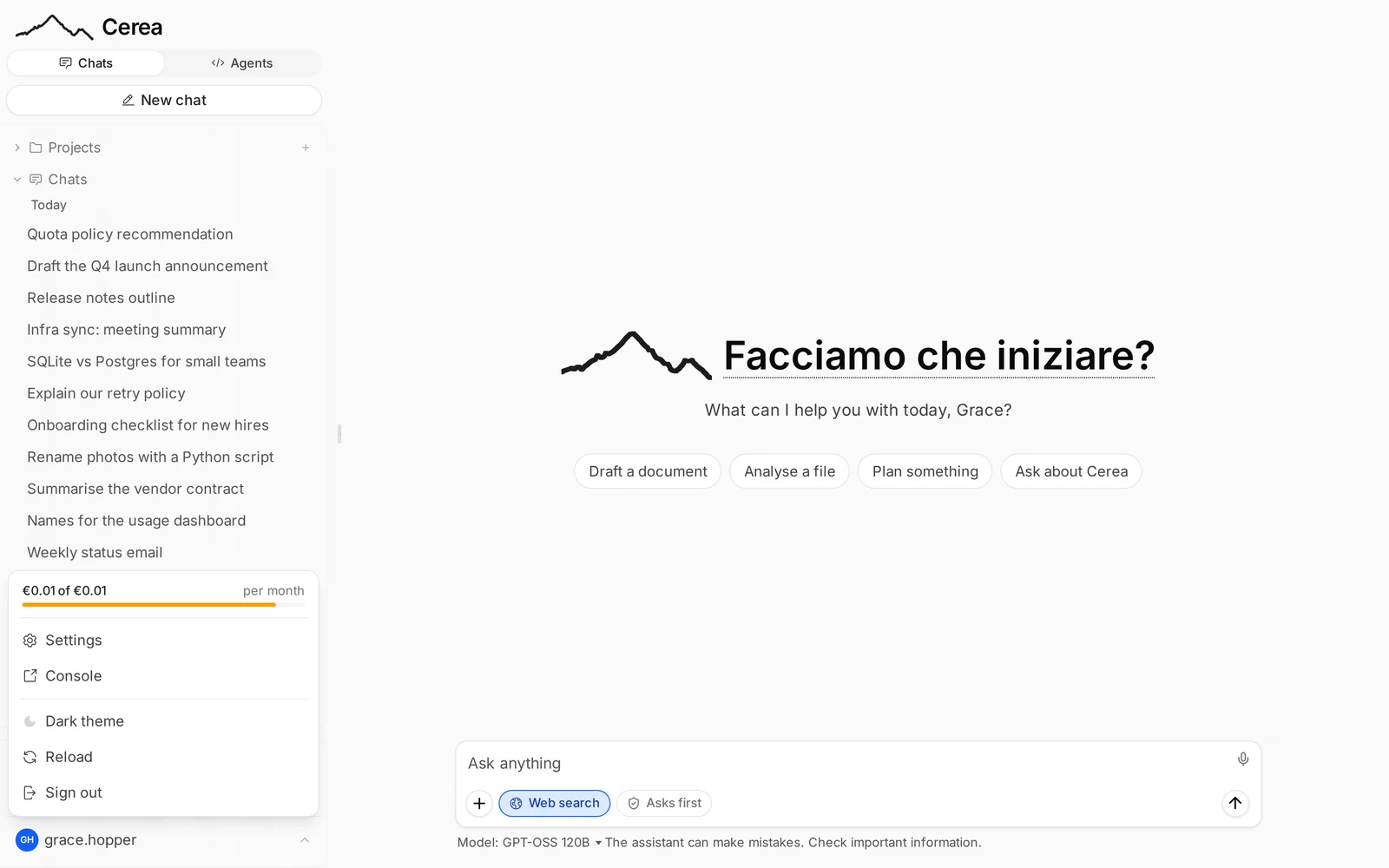
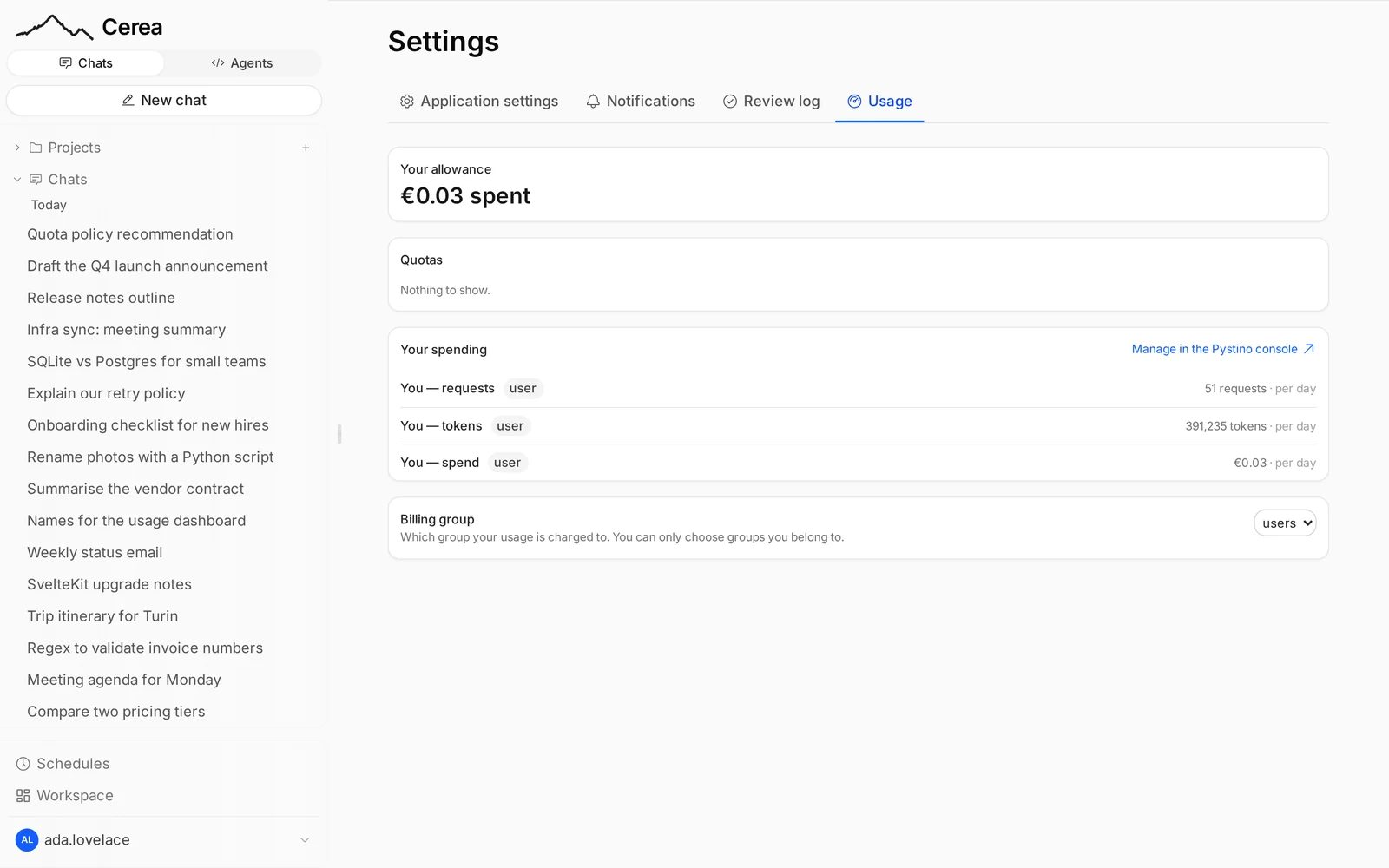
Every request is billed to one of your groups, and that group decides what you are offered: the model list shows exactly what your current billing group can use — not every model your groups collectively hold. You choose the group in Settings → Usage, and the model list follows the choice at once; a model you had selected that the new group cannot use falls back to the first one available, the way any model that disappeared from the deployment does.
The same page is where your spend is shown — your own figures only: your totals, your limits, and your share of a group limit that is charged to each member separately. Limits that apply to the group or the deployment as a whole are listed so you know they exist, without figures, because their totals are not yours to see. If you manage a computer through the Agents panel, its billing follows the same rule, and there it can also be set to follow this choice.
Chats
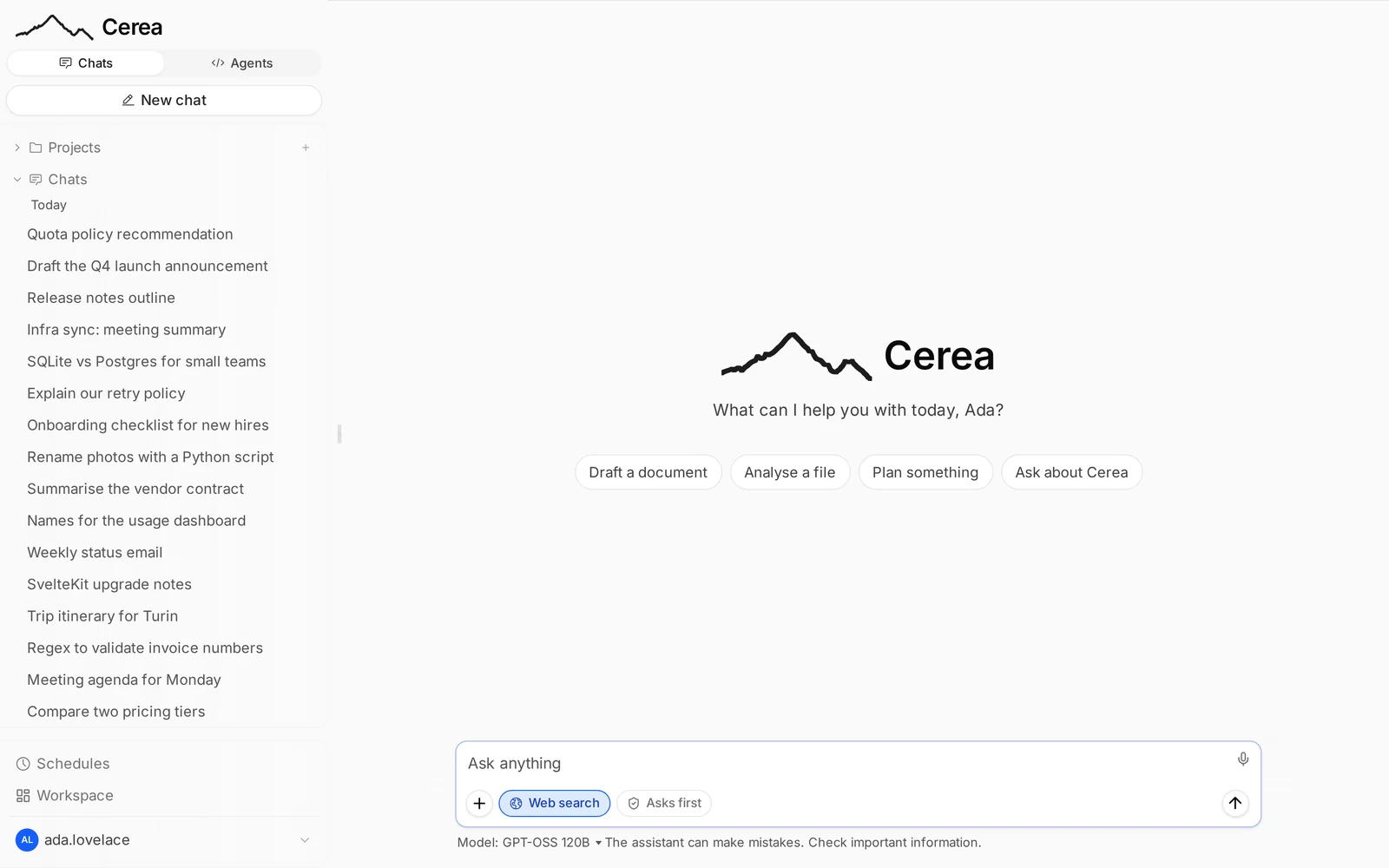
The sidebar has the logo at the top (it goes home), then the Chats | Agents
switch (only where coding agents are on) and a New chat
button that follows it: in Agents it reads New session. Below are two
trees, Projects and Chats. At the foot are Schedules and
Workspace, then your name. Click your name for your menu: a small quota
summary (what you have spent against your limit, or the spend alone when there
is none; it links to Settings → Usage), Settings, Admin for
administrators (Administering the chat), Console where the
deployment has one and you may open it, the theme switch, Reload and
Sign out. Counts beside a tree's name appear when you point at the row.
Press Ctrl-K (⌘K on a Mac) anywhere to jump to a chat, project, agent session,
schedule or settings page by typing part of its name. A chat keeps
the model it was started with. Projects group chats that share
standing context and knowledge; each project has a page of its own, opened from
its row's ⋯ menu (Project settings). See Knowledge and projects.
In each of the two trees the name is a link and the small chevron beside it opens and closes the list: click Projects to see all your projects on a page, Chats to open the chat list below, and the chevron to fold the branch without leaving where you are.
Finding a chat. The sidebar lists your recent chats. Chats opens a page
with all of them, newest first: the title, when it was last used, the model,
and the project it belongs to if it is in one. The search box is ready as soon
as the page opens; type part of a title and the list narrows. Capitals and
accents do not matter (cafe finds Café Müller), and what you type is taken
literally, so c++ finds exactly that. What was said in the chats is searched
too, once you have finished a word: type a space, press Enter, or pause for a
moment. Chats found that way show a short piece of the message under the title,
with your words marked and who said it (you or the assistant). Chats whose title
matches come first, then the best matches in the text. Several words must all be
in the chat (not necessarily the same message); put them in quotes to find the
exact phrase ("codice fiscale"), or put - before a word to leave out chats that
have it. Words are matched whole and as typed, so cat does not find
concatenate, and there is no matching of other forms of the word (run does
not find running). A very long chat shows no snippet when the match is far into it,
but is still listed. Searching message text needs a signed-in account; without one,
only titles are searched. Only what you and the assistant wrote is searched, not
reasoning, tool results or the contents of attachments. Your own chats in projects
are included; a colleague's chats
in a project shared with you are in that project's page, not here. Click a row
to open the chat. Each row's ⋯ menu offers Move to project…,
Remove from project when the chat is in one, and Delete, which asks for
confirmation first, exactly as the sidebar's menu does.
Titles. Cerea names a chat after its first turn. If you do not like the
name, open the chat's ⋯ menu in the sidebar and choose Regenerate title:
it asks again, this time with the start of the reply to read. The item is not
there for a title you typed yourself, which Cerea never replaces. If a title
cannot be written (the model gives nothing, or titles are off in this
deployment) the current one stays and you are told.
Everything a chat does that has a cost is metered against your token: the reply, the title Cerea generates from the first turn, reading a document, embedding a passage, searching.
When you reach a limit. The reply that crosses your quota still completes; the next one fails with a message that says whose quota is used up ("Your monthly allowance of €10.00 is used up." or "Your group's monthly allowance of €10.00 is used up."), and points to Settings → Usage (or to your administrator where there is no Usage page). A spent quota is told apart from a short rate limit, which only asks you to wait; the same wording applies to sub-agents, images, voice, document reading and search. Where the deployment shows it, Settings → Usage says where you stand. If your deployment redacts personal data, names or numbers in an answer can come back as placeholders such as <PERSON_…>, and a message containing something your administrator blocks (an API key, say) is refused without being sent.
What the model knows about time. Every reply is generated knowing the
current date and time in your timezone (the one your browser reports), as
one line at the end of its instructions. When you write after more than an
hour's silence, that message reaches the model with a short prefix such as
(sent Sat 4 Oct 14:32, 3 hours after the previous message), so a chat picked
up a week later does not read as one sitting. The prefix is added for the model
only: it is never saved and never shown in the transcript.
Deleting. Deleting a chat removes everything it stored: attachments and the text read from them, code-run files, its indexed transcript, and anything a long-retired version copied for sharing it. Delete all chats includes chats inside projects. Deleting a project deletes the chats you started in it, unless you tick Keep the project's chats as regular chats, which returns them to your ordinary list. A daily sweep removes files left behind by anything that failed or by older versions, after a 24-hour grace period.
Dictation
Where your administrator has chosen Browser dictation (see Voice) and your browser offers speech recognition (Chrome, Edge and Safari, including Safari on iOS), a microphone button sits at the right of the message box, here and in the agent composer. Click it (or Tab to it and press Enter) to start dictating and click it again to stop; its label reads Start dictation or Stop dictation, and while it listens it turns red and pulses.
- What you say appears in the box as you speak, at the caret (or at the end if you have not clicked in the box), after whatever you had already typed. Nothing is sent: you read it, fix it and press Send yourself.
- Dictation stops when you type, send, click elsewhere, leave the page, or when the browser ends the session after a silence.
- It listens in your browser's language. There is no setting for it: change the browser's language to change what it recognises.
- A short message appears if it cannot run: microphone access blocked, no microphone, no speech heard, or no connection to the browser's speech service.
With Transcription model dictation instead, the microphone records (a timer shows how long, up to five minutes; it works in Firefox too), and when you confirm, the recording is transcribed through the gateway as you and the text is added to your message. That audio goes to the provider that serves the transcription model, not to your browser's vendor.
Your browser may send the audio to its vendor
Cerea ships no speech model and never receives the audio: your browser does the recognition. Chrome, Edge and Safari send what you say to their vendor's cloud service for it (so dictation needs a connection, and the vendor's privacy terms apply to that audio). Firefox has no speech recognition, so the button is not shown there. If that matters to you, type.
Appearance
Your messages sit on the right in a light blue bubble (in dark mode a deep shade of your accent colour, navy for the default Blue), at most 85% of the width, so your turns and the replies are easy to tell apart when you scroll; replies stay on the left in a neutral bubble. A long message of yours folds behind Show more. Text is set in Inter, 16px in the chat.
Settings → Application settings → Appearance has three choices:
- Theme: System, Light or Dark. Kept in this browser, so each device can differ.
- Accent colour: Blue, Violet, Teal, Green, Rose or Orange. It colours buttons, links and the selected chat.
- Background tone: Gray, Slate or Stone: cool or warm greys behind the text.
The accent colour and the background tone are saved on your account and applied before the page draws, so they follow you to every device.
Every combination keeps text and buttons at a contrast of 4.5:1 or better, in light and dark.
Models and effort
The model pill in the composer opens a list of models with a one-line description each. With ten models or fewer it shows all of them. With more, it shows a short list, the current model and the ones you picked recently (at most six), with a search field, and More models opens the full searchable picker. Changing the model in the composer changes it for that chat.
For a model that thinks, Effort in the same pill offers the levels that model takes, plus Default (the model's own). Effort is per chat. A preset that pins its own effort shows it read-only.
The models themselves are managed in the Workspace page's Models tab. There, Set as default decides what a new chat starts on: an open chat keeps its own model. The list is the gateway's, and the switches for a model's tools, vision and reasoning start from what the gateway advertises for it; they are a default you can override, not a gate. (There is no per-model system prompt any more: see below. Prompts that were stored per model were dropped, not migrated.)
A model appears in the picker under the name your administrator gave it, when the gateway carries one; otherwise under the id it is sent as. The two are different on purpose — the id is what a request carries and what a chat stores, so it never changes, while the display name is set on the gateway's model page (Administering the gateway).
Your own keys
If your group allows it, you can add your own providers and models in the
gateway console (Your providers and models in the Workspace page's
Models tab opens it). Those models are private to you and appear in the
picker and in the Models tab with a Your key badge; their ids start with
my/. They work like any other model: chats, projects, schedules. A custom model
cannot be based on one. They use your own API key, so they are not counted against your
group's limits, and the usage is shown to you only.
Custom models
The Your custom models section of the Models tab (Workspace → Models) holds
two things you write yourself. (Custom models used to be a tab of their own; the
old address /workspace?tab=custom still opens here.)
A global system prompt. One text box, saved on your settings and sent with every chat message, whatever the model. It is for chat only: the Agents panel and the titles Cerea generates never get it. If your administrator has written instructions for every chat, they come before yours and are shown above your box, read-only, as "From your administrator". An administrator can choose not to show them: they still apply, you just do not see them.
Custom models. A custom model is a name, a base model (any model you can see, but not another custom model), a system prompt and an optional short description. Names are unique among your own. Custom models are private to you and are removed with your account.
- They appear in the model pill and in the models list beside the base models, marked custom and named with their base, for example Menu helper · GLM 5.3 Flash.
- They inherit everything from the base: vision, tools, reasoning, the effort options and the per-model switches. Your effort choice goes to the base model.
- The provider never hears of them. A chat on a custom model keeps the custom model, but each message is sent to the base model.
- A custom model can be your default for new chats, and you can switch a chat to or from one like any other model.
- Delete one and its chats carry on, on its base model. If a base model leaves the gateway's list, a chat on a custom model built on it keeps working on the deployment's default model, and the tab marks the model as unavailable until you pick another base.
What the model is told, in order: the administrator's instructions (if any), your global prompt, then the custom model's prompt, then the project's standing instructions and context (see projects). Empty parts are skipped. Custom models are chat-only: the Agents panel ignores them.
Attachments
Attach a file with the composer's + (on a phone, it opens the file and photo picker), by dragging it onto the window, or by pasting: a long paste becomes a chip rather than flooding the box. Files are limited to 10 MB each, except audio (up to 25 MB).
- Images go to a model that can see them.
- PDFs and Office documents are bytes no model reads, so the gateway's
document reader turns each into text. Word, Excel, PowerPoint, OpenDocument
and EPUB files always go to the deployment's own reader, and old Word
.docfiles are read too, even when saved with a.docxname; only PDFs go to the reader an administrator chose, and a PDF whose chosen reader fails (a rate limit, say) is read by the local one. This happens once, when you attach the file, and the text is stored beside it. That is a billing decision: the reader is priced per page, so reading again on every turn would charge for the same twelve-page PDF on every question about it. - A scanned PDF (pictures of pages, no text layer) is read by the model
when the deployment's own reader is the one reading PDFs and the
chat's model can see images: the reader renders the pages (at most
the first 20, or as many as
CHAT_PDF_IMAGE_PAGESallows, so a longer scan says "only the first 20 of N pages"), they are stored as attachments of the chat, and they are sent to the model exactly like images you attached, beside a note ("Scanned PDF name.pdf: pages 1–N attached as images"). They are deleted with the chat. A model that cannot see images is told the PDF is a scan and that it needs an OCR reader or a model that reads images; if you switch to such a model later, the stored pages are not sent (the note says so) and are sent again if you switch back. When a remote OCR model is the PDF reader, it reads the scan itself and no pages are rendered. Whether a model sees images is its vision switch under Workspace → Models. - Audio (mp3, m4a, wav, ogg/opus, webm, flac) is transcribed by the deployment's transcription model, once, when you attach the file, as you (it is metered per audio minute with your account), and the transcript is stored beside the file. The assistant reads the transcript, labelled with the file name and duration, never the sound. Click the file in the chat to play it and read the transcript. Audio may be up to 25 MB (about 25 minutes of ordinary audio, the gateway's own limit); a recording the transcription service cannot take is kept and the assistant is told it has no transcript. The audio goes to the provider that serves the model and is not screened by redaction. Audio is not offered when no transcription model is available to you.
- A document with no readable text (a scan the reader could not make sense of) is not skipped silently. The assistant is told the file had no readable text, and why when the reader said, so it says so rather than answering as if nothing were attached.
- Code the assistant runs finds the chat's attachments at
/mnt/data/<name>, with the text read from each beside it as<name>.md(Python in the browser).
Previews and converted files. Click a file in the chat to open it in the side pane. A deployment with the document converter (Office previews) shows Word, Excel, PowerPoint and OpenDocument files as a PDF, and the assistant can convert a file already in the chat to a PDF, or write Markdown or HTML out as one; the result is saved in the chat like any file it produced. Without the converter, decks are drawn in the browser and other Office files can still be downloaded.
Which model reads documents is decided by the Knowledge settings (an administrator's choice, see Administering the chat); a deployment can also point extraction at a reader directly (Configuration).
Images
When your account has an image model, the assistant can draw pictures: ask for one in the chat ("a watercolour of a lighthouse at dusk, portrait"), or choose + → Create an image, which starts your message with "Create an image of " and puts the cursor after it. Each picture appears in the chat as a file card with a download button, with the prompt it was drawn from. Image models often rewrite the prompt first; when this one did, the card shows the rewritten prompt too.
- Cost. Each image is metered to you, like any other model call, and billed to the billing group you have chosen. Images are cheap, but they are not free: ask for the variations you want and not many more.
- Limits. At most 4 images per turn, counted across the assistant's calls in that turn. Sizes are square (1024 x 1024), landscape (1344 x 768) and portrait (768 x 1344), about one megapixel: image models deliver roughly that at most, whatever is asked, and the assistant is told the size that came back. It picks from your words ("a wide banner"). Pictures are usually JPEG.
- Where they go. The pictures are files in the chat, kept like any file the assistant makes (see Storage), so you can ask for code that reads them, or for them to be put into a document. A model that can see images is shown what it drew, for that turn.
- What leaves. Your prompt goes to the provider that serves the image model; the gateway's redaction applies to it.
- Asking first. An administrator can make the assistant ask before each generation: you then get an approval card, as for other tools. A scheduled chat cannot answer one, so it cannot make images then.
- When it is missing. No "Create an image" item and no image tool means no image model is granted to your account. Ask an administrator.
Web search and web fetch
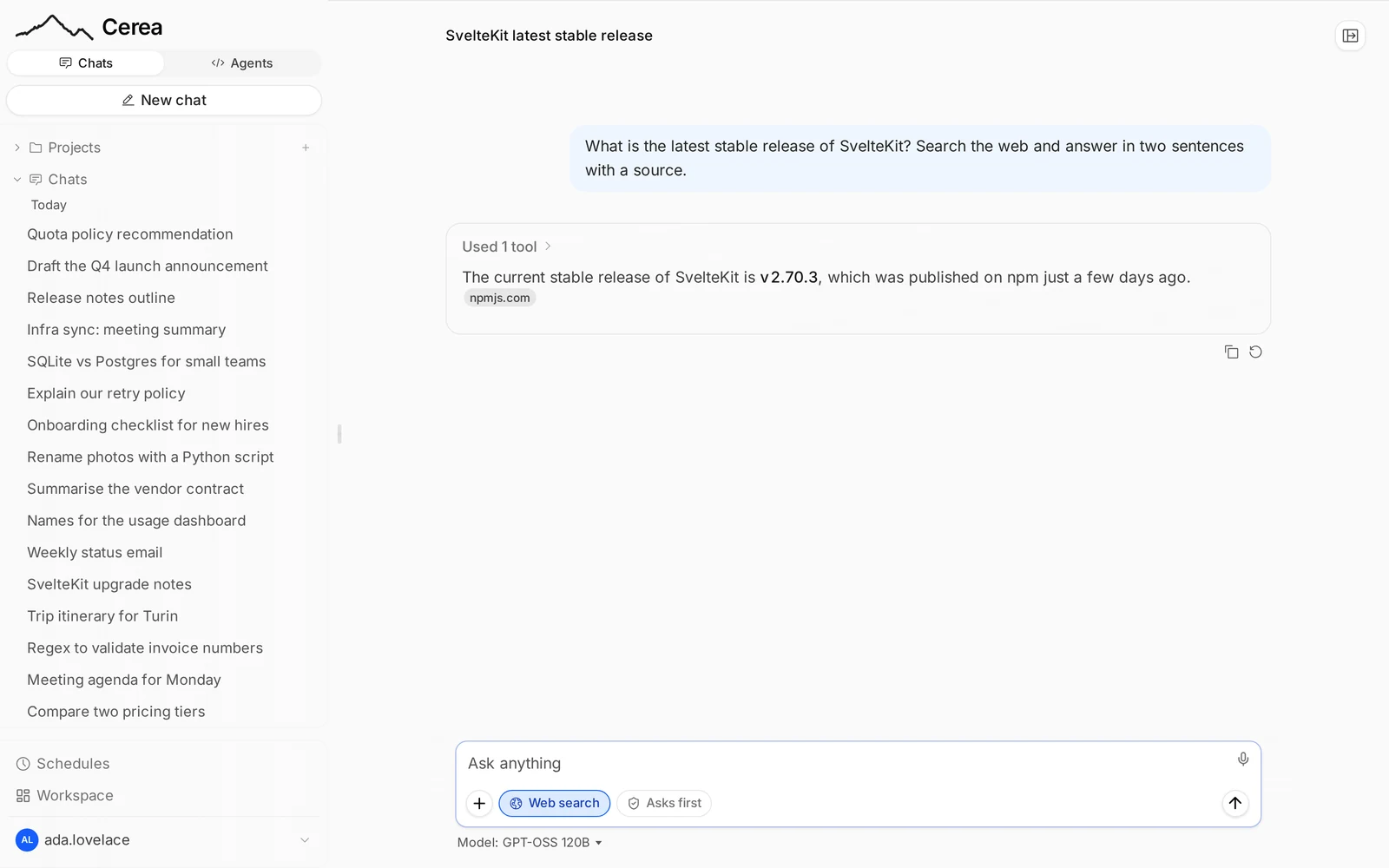
The Web search pill in the composer switches search on for this chat. It is your consent to spend: the search runs through the deployment's search backends and is metered to you.
If you have no search backend (none in the gateway, or none granted to you), the pill, the "on by default" switch in your settings and the project default are shown disabled with "Web search isn't set up on this deployment"; an administrator also sees where to fix it. Nothing is offered that could not work.
This is the deployment's own search, not the model's. Administration → Web
search lists the search backends the gateway offers and lets an administrator
choose which one runs (WEB_SEARCH_MODEL in the environment overrides it).
With none chosen, or when you are not granted the chosen one, the gateway uses
your billing group's search policy, so the same question searches the same
sources whoever asks it.
Whether a new chat starts with search on follows a chain: the chat's own state, then the project's default (inside a project), then your app setting (on for new accounts; older accounts keep whatever they set), then off. Nothing done inside a chat writes back to the settings.
When you paste a link, or search finds one, the assistant can also fetch the page and read it. Some sites stay empty until JavaScript has run. If the assistant reports a page as empty, your deployment may not have the headless browser that reads pages the way a browser does; that is an operator's choice.
Fetching refuses addresses on the deployment's internal networks, so a page or a
model cannot point it at internal services: the 10.0.0.0/8 range and the
100.64.0.0/10 range that mesh VPNs such as Tailscale and NetBird use are
refused, and so are loopback, link-local and the other private ranges. An
operator who must fetch from an internal host can allow the first two with
CHAT_FETCH_ALLOW_INTERNAL_NETWORKS (Configuration);
connectors are not covered by this rule and may reach them. The same
rule applies to Attach from URL.
Tool approvals
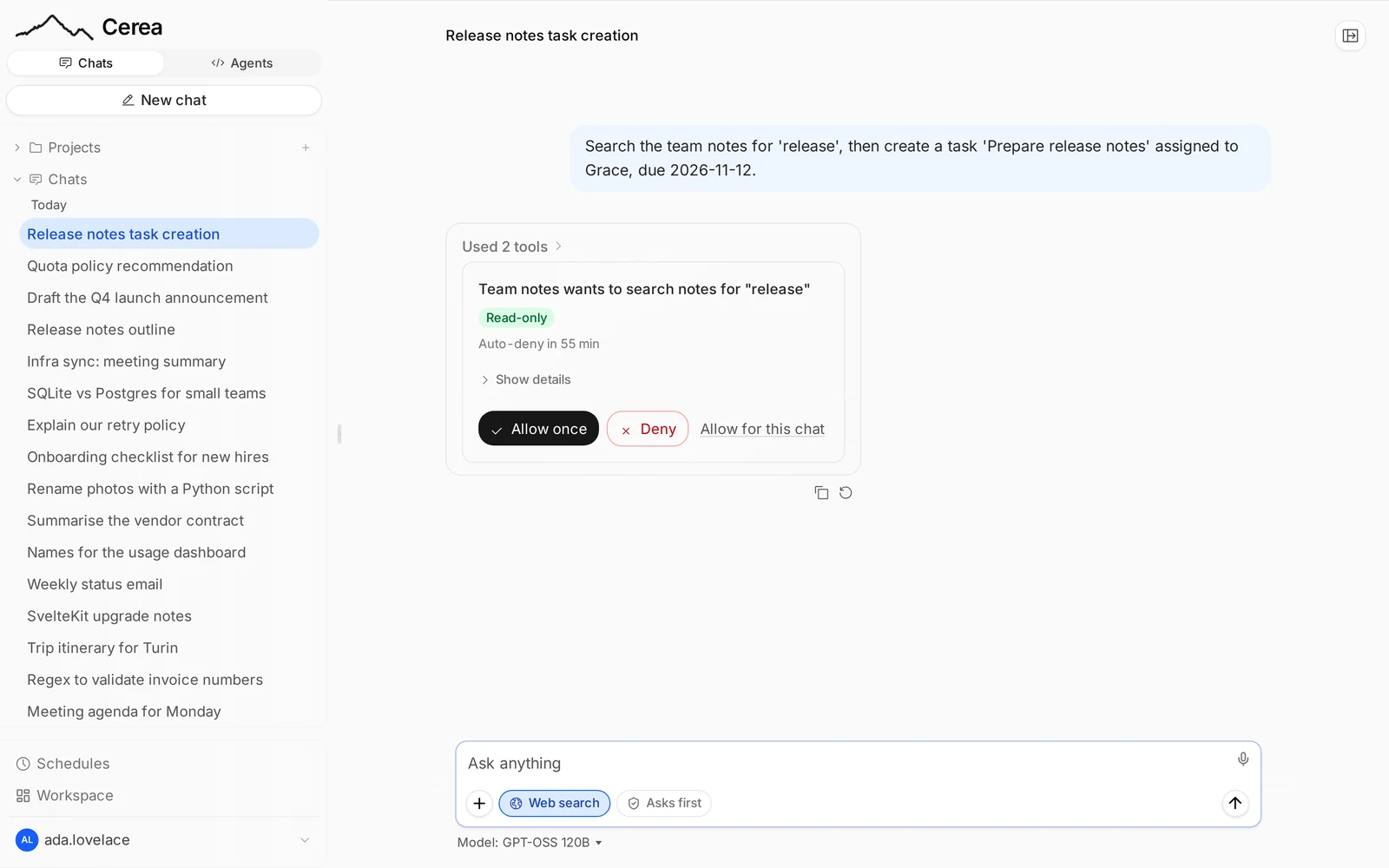
Some tools act outside the chat, so by default (Tools ask first) they wait for you. (A sub-agent cannot wait for you, so it only uses what you have already allowed.) When the assistant wants to open a page that neither you nor a search result supplied, or to use a tool from a connector, the answer pauses on an approval card showing what it wants to do and with what. You choose: allow this once, allow this tool for the rest of the chat, or deny. If it wants several, you approve each one. A card you leave unanswered is denied when its time runs out.
The composer's Tools ask first / Tools auto-approved pill overrides the policy for this chat only; the app-wide default lives in your settings. Python the assistant runs in the in-browser sandbox never asks first: it runs in your own browser, with no network access, so it cannot act outside the chat.
Location
Settings, Application, Location lets the assistant know where you are, so answers about weather, local time, nearby places and units fit without you typing it each time. It is off by default, and there are two ways to turn it on:
- A place I type, for example "Torino, Italy" (up to 100 characters, one line).
- From this device, which uses the browser's location permission. The browser asks only when you choose this option. Coordinates are rounded to about 1 km and read again whenever you open a chat. They stay in your browser and travel with each message; the server does not store them. If the permission is denied or the device cannot tell, the setting stays but nothing is shared.
While sharing is on, one line goes to the model provider with every chat
message, for example The user's location (shared by them): Torino, Italy,
timezone Europe/Rome. The line includes your browser's timezone. It is not
saved on the messages and the server never adds it to tool calls: the model
sees it as context and decides when it matters. It applies to chats only, not
to the /code panel or to title generation.
Plans and sub-agents
With a model that can call tools, the assistant keeps a plan for work with several steps: a short list of steps, one in progress, ticked off as it goes. The plan card shows it live and stays in the finished message. A plan has at most 20 steps, with one in progress at a time, and the assistant rewrites it whole on each update (it keeps a one-paragraph statement of your goal beside it, folding in corrections as you make them). It belongs to the chat, so the assistant sees its current plan again on your next message and revises it when the request changes. For a simple question there is no plan. The plan is the assistant's own working list: there is nothing to approve, and it does not change what the assistant may do.
The assistant can also hand a self-contained sub-task to a sub-agent: a
second run of a model, in a fresh context, that sees only the brief it was
given and gives back only its final answer. Each one is its own card in the
message, with a title, the model it runs on, a live line for what it is doing
("searching ...", "reading ...") and, once done, its answer and the list of
steps it took. The assistant starts one with its delegate tool, and several
delegate calls in one step run side by side.
- Which model. By default the chat's model. The assistant may pick another tool-capable model you can use (never one of your custom models), for instance a cheaper one for a simple lookup. The card names the model it ran on.
- What it can use. The same server-side tools as the chat: web search, fetching pages, and the connectors you have switched on. It cannot run code in your browser, make a plan, or start sub-agents of its own.
- Approvals. A sub-agent cannot stop to ask you. It may use a connector tool only when this chat already allows it (you chose "allow this tool for the rest of the chat", or tools are auto-approved); otherwise the call is refused, the card shows it as refused, and the assistant is told which tool needs your approval and can ask for it itself.
- Limits. Three run at once (a fourth is refused until one returns) and one message may start ten in all; the eleventh is refused, and the assistant is told to finish the rest itself or say what is left. Each sub-agent stops after 25 rounds of tool calls, a budget of 400,000 tokens or eight minutes, whichever comes first, and answers with what it has. The per-message limit on pages read is shared with it.
- Stop. The composer's Stop ends the message, and every running sub-agent with it.
- Cost. A sub-agent's model calls are billed to you like any message, and several in parallel use your quota faster.
- Research. Where web search is on, the assistant can start a research sub-agent: it plans queries, reads primary sources, cross-checks them and answers concisely with the sources it cites, saying where they disagree or are thin. It uses the web only.
An administrator can turn sub-agents off for the whole deployment, under
Administration → Assistant → Sub-agents (Sub-agents); the
assistant is then not offered delegate or research. Coding agents on your own
computers have their own, separate kind of delegation: see
Delegating work.
Scheduled chats
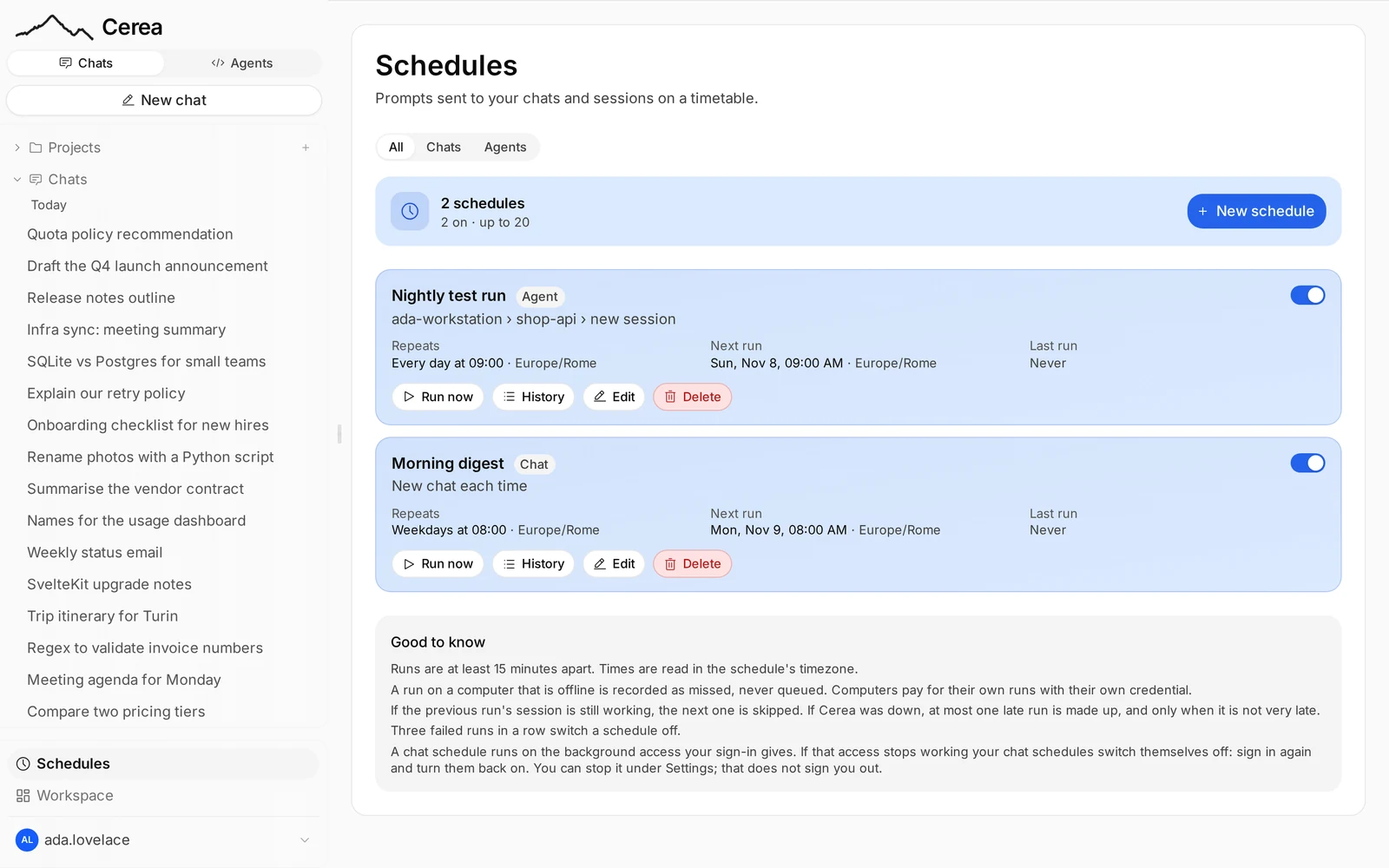
A scheduled chat sends a prompt of yours again on a timetable and lets the assistant answer, with nobody at the screen: "every Monday at 08:00, summarise the news on space travel", "every Friday, remind me to send the report". Every signed-in user has them; they are not part of the coding agents.
Making one. Three ways:
- Open a chat's ⋯ menu in the sidebar and choose Schedule…. The editor opens on that chat.
- Open Schedules at the foot of the sidebar and choose New schedule. One page lists chat and agent schedules, each marked Chat or Agent; the filter (All · Chats · Agents) starts on the side you came from.
- Ask the assistant: "remind me every Friday at 4 pm to send the weekly report". It proposes the schedule on a card, with its name, timetable, where it runs and the prompt it will send, and the schedule exists only if you press Create schedule. There is no "allow for this chat" on that card: each schedule is confirmed by you, one at a time.
In the editor you give a name, the prompt, how often (every N hours, daily, weekdays, weekly, or a cron expression; at least 15 minutes apart; read in the timezone you choose), and where it runs:
- Continue this chat (the default): each run posts the prompt into the chat and the assistant answers there, with the chat's earlier messages as context.
- New chat each time: each run starts a new chat, titled with the schedule's name and the time, on the same model (and project, when it was made from a chat in one).
- A dedicated chat for this schedule: the first run creates a chat named after the schedule, on the same model (and project) as a new chat would have, and every later run posts into that same chat. Editing the schedule keeps the chat. If you delete the chat, the next run makes a new one; the schedule stays on.
You can also set it to stop after a number of runs (one run makes a one-time reminder), switch it off and on, edit it, or press Run now to try it.
What a scheduled run can do. It runs as you, on the server, in the same way as a message you send: your model access, quota, billing group and instructions apply, and your connectors that run on the server, web search and fetching, and the document tools work. Two things do not, because nobody is there:
- No Python. The sandbox runs in your browser, so a scheduled run cannot run code. The assistant is told so; it can still write code for you to read.
- Tools that need approval depend on the schedule's permission mode, which you set in the editor like a coding agent's: Ask (the default for a user on the manual approval setting) refuses every such tool, the way a sub-agent's are, and the assistant says that step needs you, whatever else you approved before. Allow (only for a user whose approval setting is "always allow") runs them as they would for you, under that setting and what the chat already approved. Content a run reads (a web page, a document, a connector's answer) can try to steer a tool, so choose Allow only for work you trust. A schedule is never looser than your own setting, and the assistant's own proposals are never looser than the chat's. Nobody can answer a question or a card in a scheduled run, so nothing waits for you.
Every scheduled prompt starts with one line you did not write, naming the schedule, its timetable, when it last ran and the two limits above; the prompt follows as you wrote it.
Where the answer is. In the chat. A chat a scheduled run answered in has a dot in the sidebar until you open it, and, if you turned on A scheduled run finishes under Notifications, a notification says it answered (or failed). Each schedule's History lists every run, fired or not, and links to the chat. A run is sent, skipped (the previous turn in that chat was still generating, so the next waits for its time), or failed; three failures in a row switch the schedule off, with the reason shown on it.
Background access. A run has no signed-in session of yours, so it uses the background access your sign-in leaves behind: your identity provider issues a refresh token (the first sign-in on a browser asks for it, and your provider may show a consent screen for it, once per browser), and Cerea keeps one per user, sealed, shared by your browser sessions and your scheduled runs (the newest sign-in replaces the older). Runs refresh an access token from it and call the models as you, so your quota, billing group, redaction rules and model access apply and usage is yours. Signing out of one device keeps it. If your identity provider refuses it (you were deprovisioned, or revoked it), you are signed out. Your chat schedules stay on but show a warning and skip their runs ("Skipped: sign in again") until you sign in again; signing in again restores the access, the warning goes by itself and the next run goes ahead (skipped runs are not made up). Settings → Application → Background access for schedules → Stop switches your chat schedules off and stops them using it; it does not sign you out (your sessions keep refreshing through it), and turning a chat schedule on again, or signing in again, gives it back. Deleting your account removes it. If your identity provider issues no refresh token, chat works as always but schedules explain that your administrator has to allow refresh tokens. You may have up to 20 schedules by default; your administrator can change that.
Notifications
Cerea can send a notification to your phone or desktop when a long chat answer is ready, or when one of your coding agents needs you or has finished, even with the tab closed. It is off until you turn it on, per device, under Settings, Notifications; see Notifications.
Memory
Memory keeps a few short standing facts about you and carries them into every chat, so you need not repeat "reply in Italian". It is off until you turn it on in your settings, because it writes things you said into a store that outlives the chat.
- It is a list, injected whole on every turn, not a search: what the Memory tab of the Workspace page shows is exactly what the model sees.
- A fact is at most 400 characters and you can keep 200. The prompt block has a character budget (1,500), and past it the oldest facts stop being sent, which the tab says.
- With memory on, you can just say it: "remember that I reply in Italian", "forget where I work". The assistant saves and removes facts itself, and you can add, edit and delete them on the tab, which shows who wrote each fact and in which chat.
- Turning memory off stops it being used and written, but does not delete the facts. Deleting happens on the tab.
- If your deployment has switched memory off, the tab is not there.
For memory that scales beyond a list, use a knowledge base (Knowledge and projects); a project can also keep its own shared memory and search its past chats.
Skills
A skill is a set of instructions for a kind of task, written as a
SKILL.md file (a name, a description, and a markdown body), optionally with
files bundled beside it. The Skills tab of the Workspace page adds them,
including from a zip of a skill folder, so a skill written elsewhere ports in
unchanged.
Every enabled skill's name and description ride each turn; the model loads a
skill's full text when the task matches, or you force it by writing
@skill-name in your message. Skills are personal (no sharing, no versions),
though an administrator can provide deployment-wide ones that everybody sees.
A skill is instructions, never code that runs on the server. If it needs Python, the model runs it in the browser sandbox. A skill whose workflow needs a shell is out of scope by design.