Knowledge and projects
For everyone
Knowledge bases the assistant can search and projects that group chats; the last section is for operators.
A knowledge base is a set of documents Cerea can search while answering. You upload files to it, Cerea extracts their text, splits it into passages and indexes them, and the model is given the passages relevant to each question. A project groups chats that share standing instructions and knowledge.
Knowledge bases
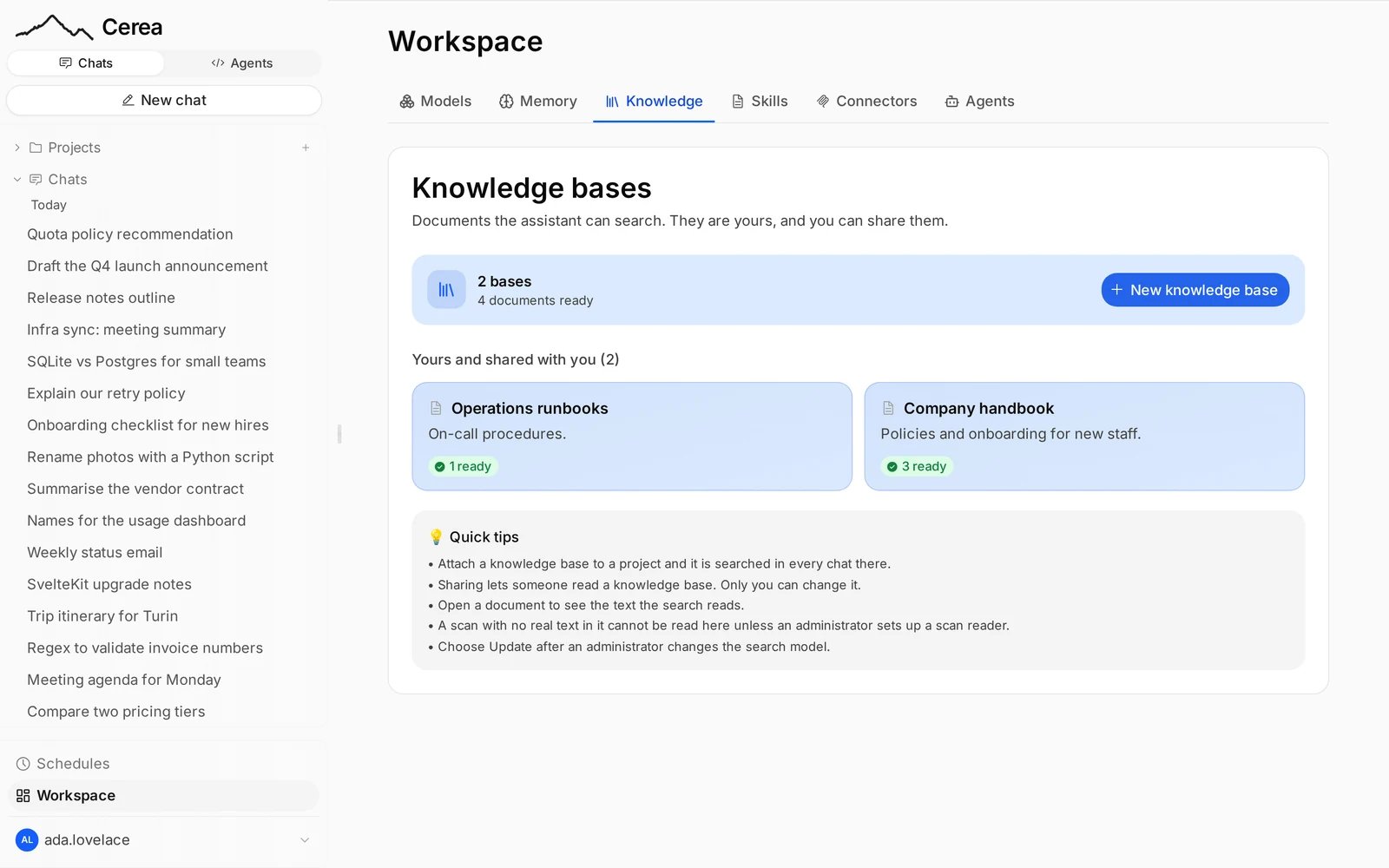
Create and fill a base from the Workspace page, under Knowledge
(/workspace?tab=kb). Upload PDFs, Office documents or text files. Each is
read once, at upload, and you can open a document to see the text that
search actually uses.
Accepted files: PDF, Word, Excel, PowerPoint, OpenDocument, e-books, and text files (Markdown, CSV, JSON, plain text). The type is decided from the file's contents, not its name or the browser's guess, so a text file with a wrong extension is still accepted. Images, archives and other binary files are refused with a message saying so (HTTP 415); a file stored before this check that is not text fails its own document with the same reason.
- A scanned PDF (pictures of pages, with no selectable text) comes out empty unless your administrator has chosen an OCR model. Open the document to check: if its text is empty, ask them. In a chat, a scan is also handled by the model: see Attachments.
- A file that cannot be read says why, in the same words to you and to the assistant: no reader is configured for that format, the reader refused the file (and what it said), the reader could not be reached, or the file holds no text. Only a PDF with no text layer is called a scan.
- Your bases are yours to own and to share. Sharing a base lets somebody read it; only you can change it.
- After an administrator changes the embedding model, your bases keep working on the old one and show that they are on an older model. Reindex brings a base up to date; it is billed to whoever presses it.
Indexing is billed to the user indexing, like any other call.
Projects
A project is a way of organising chats. It has a page of its
own: the sidebar's Projects + opens /projects/new to create one, and a
project row's ⋯ menu has Project settings, which opens /projects/<id>
(and Delete). The page is one scroll of sections, each editable where it
stands; the text fields and options share one Save changes, and everything
that is an action (attaching a base, adding a document, removing a chat) happens
at once.
What every chat in a project is given
Five levels, always in this order. The first three are sent in full on every message; the last two are searched, so only what matches your question arrives. The page lists them at the top, in this order:
- Standing instructions: prepended to the system prompt of every chat in the project (in full).
- Context documents: files you attach to the project (in full; see below).
- Project memory: the project's shared notes (in full; see Project memory).
- Knowledge bases attached to the project, searched on every turn (up to the project's retrieval limit, six passages by default).
- Past chats: the project's own earlier chats, searched, when you turn that on (see Past chats).
The page also holds the project's name and description, its chats (each with a link, Remove from project and, for your own chats, Delete), an Artifacts tab with what the assistant made in your own chats of the project (see The Artifacts tabs), sharing and the defaults for new chats: web search on or off; when the project leaves it unset, the app default applies. A project no longer picks the connectors new chats start with: that setting is retired, and connectors are switched on and off for you in Workspace → Connectors.
Knowledge bases can be attached or detached at any time, not only when the project is created: search the list under Knowledge bases and press Attach. To make a base, use the link to the Workspace's Knowledge tab.
Deleting a project deletes its chats (the ones you started, with everything a deleted chat leaves behind), its notes, its context documents and its past-chats knowledge base, the one that lets the assistant remember the project's chats. Tick Keep the project's chats as regular chats in the confirmation to move your chats back to your ordinary list instead. Knowledge bases attached to the project are their own resources with their own owner, so they are kept. In a shared project, chats other users started are never deleted: they go back to those users' own lists.
Remove from project does the same for one chat: the chat returns to your ordinary list and its transcript leaves the project's past-chats memory. You can remove a chat you started; the project's owner can remove any. Delete in the same menu deletes one of your own chats for good, after the same confirmation the sidebar's menu shows.
Context documents
Attach files to a project and the full extracted text of each goes into every message in that project's chats, like a chat attachment and unlike a knowledge base. Use them for the few things the assistant should always have in front of it: a call text, a style guide, a contract.
- Files, not folders. Add individual files (several at once is fine); a
dropped folder is refused, because whole documents go into every prompt and a
folder is how a project ends up with a thousand of them. Text files (
.txt,.md,.csv,.json…) and documents (PDF, Word, Excel, PowerPoint, OpenDocument, EPUB), up to 10 MB each. - Read once, at upload, by the same reader as chat attachments, with the same failure reasons. A file that cannot be read stays listed with its reason and adds nothing to the prompt.
- A budget of 100,000 characters of extracted text per project. Each document shows its size in characters and roughly tokens (about four characters to a token), and a bar shows the total. Past 50,000 the page warns that large context makes every message in the project slower and more expensive; an upload that would pass 100,000 is refused. A project holds at most 50 documents.
- Everyone who can see the project can add and remove documents, as with notes, and each shows who added it. The text goes into the prompt of that project's chats only, for users who can still see the project.
- Deleting a document removes the stored original and its text. Erasing a user's account deletes the documents in projects they own, with the project; documents they added to other users' projects stay, and show "deleted user".
Project memory
A project also keeps a short list of notes, its Project memory, that every member shares — a
convention, a decision and its reason, where something lives — and that goes
into every chat in that project and nowhere else. It is the
personal memory list, moved from a user to a project, and
it is on whenever the deployment has memory on (CHAT_MEMORY_ENABLED); your
own opt-in for personal memory does not apply, because the notes are not about
you.
- Everyone who can see the project can read, add, edit and delete notes: the owner and everyone it is shared with. That is wider than the project's instructions, which only the owner changes. Each note shows who wrote it, its date and, if the assistant wrote it, the chat it came from.
- The assistant can write them too. In a project chat it is offered
remember_for_projectandforget_for_projectas well asrememberandforget, and the change shows in the transcript with an undo. - Limits. A note is at most 2,000 characters and a project keeps 100. The prompt block has a budget of 8,000 characters; past it the oldest notes stop being sent, and the Memory section of the project page marks which.
- Deleting a project deletes its notes. Erasing a user's account deletes the notes in projects they own, with the project; notes they wrote in other users' projects stay, and show their author as "deleted user".
- A note is read by everyone in the project and goes into everyone's prompt, so never keep a password, key or token in one.
Past chats
A project can search its own earlier chats. With Search this project's own past chats on, finished exchanges in the project are indexed into a knowledge base of their own, the memory base, so later chats can draw on earlier ones. It is off by default, because it copies what was said into a searchable store, and that is a decision worth making rather than discovering.
- The memory base is an ordinary knowledge base, named after its project, visible on the Knowledge tab and deletable there. The transcripts are somewhere you can look.
- Each chat is kept once: as it grows, its copy in the memory base is replaced, never duplicated.
This is a different thing from personal memory, a short list of facts about you that goes into every chat, and from the project's memory above, a short list of shared notes sent in full.
Agent workspace
If coding agents are on for you and you have paired a computer, the project's Settings tab has an Agent workspace card: the computer and workspace the coding sessions started from this project's chats run on, and a permission word (Plan, Ask or Allow; Ask by default). Sessions the chat starts use that word; a session that already exists keeps its own. It has its own Save and Remove, apart from the page's Save changes.
It is yours alone. A computer belongs to one user, so in a shared project each member sets their own target, and nobody sees anyone else's. With no computer paired the card says so and points to the Agents panel. In a chat, each session the assistant starts or prompts leaves a card in the chat with its live state (working, needs you, idle, failed, offline) and an Open in /code link.
Sharing
You can share a base or a project with a user (by email address) or a group (by name).
- Cerea can't check the name you type. It can't look up who exists or who is in a group, so a typo in an address and a colleague who hasn't signed in yet look the same. The share list shows what you typed, not who it reached. Check the spelling.
- A shared project shares its instructions, knowledge and memory, not its chats. Members see only their own chats in it (plus a count of other members' chats), and a chat opens for its author only. With past-chat memory on, the assistant can recall past chats from all members. The project page says so.
- Sharing a project shares no documents. Retrieval runs with the reader's own identity on every turn, so a reader sees passages only from bases they could already read. A project is never a way to publish a document without sharing it.
When a base cannot be searched
A base that can't be searched never stops an answer. If the search service is down, you still get an answer, without those passages and without a warning. If an answer ignores a document you expected it to use, ask again later or tell your administrator.
For operators
| Switch | CHAT_KNOWLEDGE_ENABLED: on unless set to false; false hides the Knowledge tab and the project and composer affordances |
| Passage store | PostgreSQL with pgvector, as CHAT_PG_URL. the deploy kit creates this database on the stack's Postgres. Use pgvector 0.8.2 or later (0.8.2 fixed CVE-2026-3172 in parallel HNSW builds) |
| Embeddings | an embedding model in the gateway's catalogue (POST /v1/embeddings), chosen on the Knowledge screen by an administrator |
| Document reading | the gateway's extraction endpoint (POST /v1/ocr). The stack's own extractor runs locally, so documents do not leave the deployment unless an operator configures an external OCR model |
Which reader takes which file. The document reader you choose on the
Knowledge screen (or fix with CHAT_OCR_MODEL) is for PDFs and images: an
upstream OCR model such as Mistral's reads page pictures. Every other format
(Word, Excel, PowerPoint, OpenDocument, e-books) always goes to this
deployment's local reader (the gateway's model flagged local, the
stack's markitdown), whatever OCR model is selected, and is never sent to an
OCR model. With no local reader, an Office file fails with "No reader for Word
documents is configured" rather than being sent somewhere that cannot read it.
If you restrict the reader model to a group, users outside it get refused by
that model. Leave the reader on automatic, or make sure everyone can use the
chosen one; otherwise their PDFs fall back to the local reader when there is
one, and are stored without text when there is not.
A legacy binary Office file saved under a .docx name (it sniffs as a
compound file, not a zip) is sent to the local reader as application/msword;
the reader looks at the bytes and either reads it or refuses with its own
reason, which is shown. A deployment with CHAT_OCR_BASE_URL and no gateway
reads PDFs only.
Changing the reader needs no reason; one sent by an older client is still recorded in the change history.
Bases, documents and sharing records live in the chat's MongoDB; passages and vectors live in PostgreSQL. Back up both (see the deploy kit README). The variables are on Configuration.
Limits: there is no reranking step yet; ranking runs in half precision over indexed widths from 384 to 3072 dimensions, and a model embedding wider than the store indexes is truncated to the largest width it covers (see below). Model weights for document conversion are not bundled: whatever the extraction endpoint runs is the operator's choice, under its own licence.
Wide embedding models
A model whose vectors are wider than the store indexes (for example
qwen3-embedding-8b at 4096 dimensions, against a ceiling of 3072) is cut down
to the store's width. The request asks the provider for that width first
(dimensions); some providers, Cortecs among them, ignore it and answer at the
native width. For a Matryoshka (MRL) model, whose leading components are
trained to work as a shorter embedding, Cerea then truncates each vector itself
and rescales it to unit length. Documents and search queries go through the same
step, so they stay in one space. The model's native width, the width used and
the fact that the provider ignored the request are logged once per base.
Only models known to be MRL-trained are cut: Qwen3 Embedding, OpenAI
text-embedding-3-small and -large, Nomic Embed Text v1.5 and v2, Jina
Embeddings v3 and v4, mxbai-embed-large, and Snowflake Arctic Embed L v2. Cutting
any other model would give meaningless vectors, so its documents fail with a
message naming the width, and the fix is to pick another embedding model.